JAMROOM

The Admin Control Panel (ACP)
Applies to: Jamroom 7.0+
Last verified: 2026-10-24
-
What the ACP is
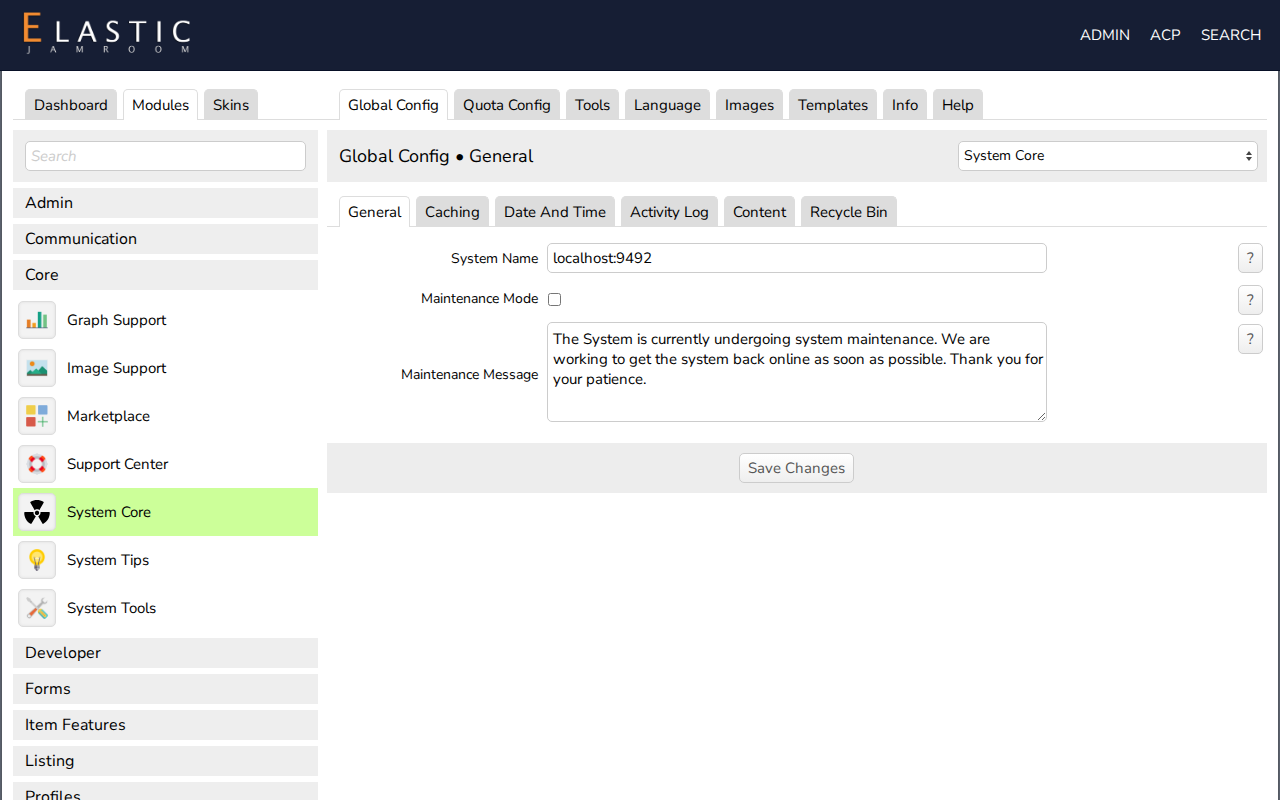
The Admin Control Panel (ACP) is where master admins configure the site: modules, skins, quotas, users and tools. Open it with the ACP link in the site header, which only master admins see.
The ACP has three tabs at the top left:
- Dashboard: site statistics and the admin tools for users and content (see Dashboard).
- Modules: every installed module, grouped in categories.
- Skins: every installed skin.
-
-
Module categories
The left column lists the module categories. Click a category to open it, then click a module. Which categories you see depends on the modules installed. These are the usual ones:
Category Modules for Admin Site administration, such as Banned Items and Page Creator Communication Email and messaging Core Jamroom itself: System Core, Marketplace, Image Support, System Tools Developer Building and debugging: Developer Tools eCommerce Selling items and subscriptions Forms Form features, such as Editor Embedded Media Groups Groups and group features Item Features Features added to other modules' items: comments, likes, tags, ratings Listing Lists and search: Search, charts, RSS Profiles Modules that add a section to profiles: Blog, Audio, Video, Forum Site Site-wide features: Site Builder, Sitemap Generator, Meta Tag Manager Tools Admin tools: imports, redirects Users User accounts: Users, Strong Password, 2 Factor Authentication To turn a module on or off, open its Info tab, check or uncheck Module Active and click Save Changes.
-
Module tabs
Every module has a row of tabs. Which ones it has depends on the module:
Tab What it's for Global Config Settings for the whole site, such as an API key Quota Config Settings per quota, such as Allowed On Profile Tools The module's admin tools, plus tools other modules add to it Language The text the module shows. Change wording or translate it. Images The module's images. Upload your own to replace them. Templates The module's templates (HTML and Smarty). Change how its pages look. Info Version, description and license, plus Module Active, Module URL and Module Category Help This documentation for the module (with the Support Center module) -
Tools
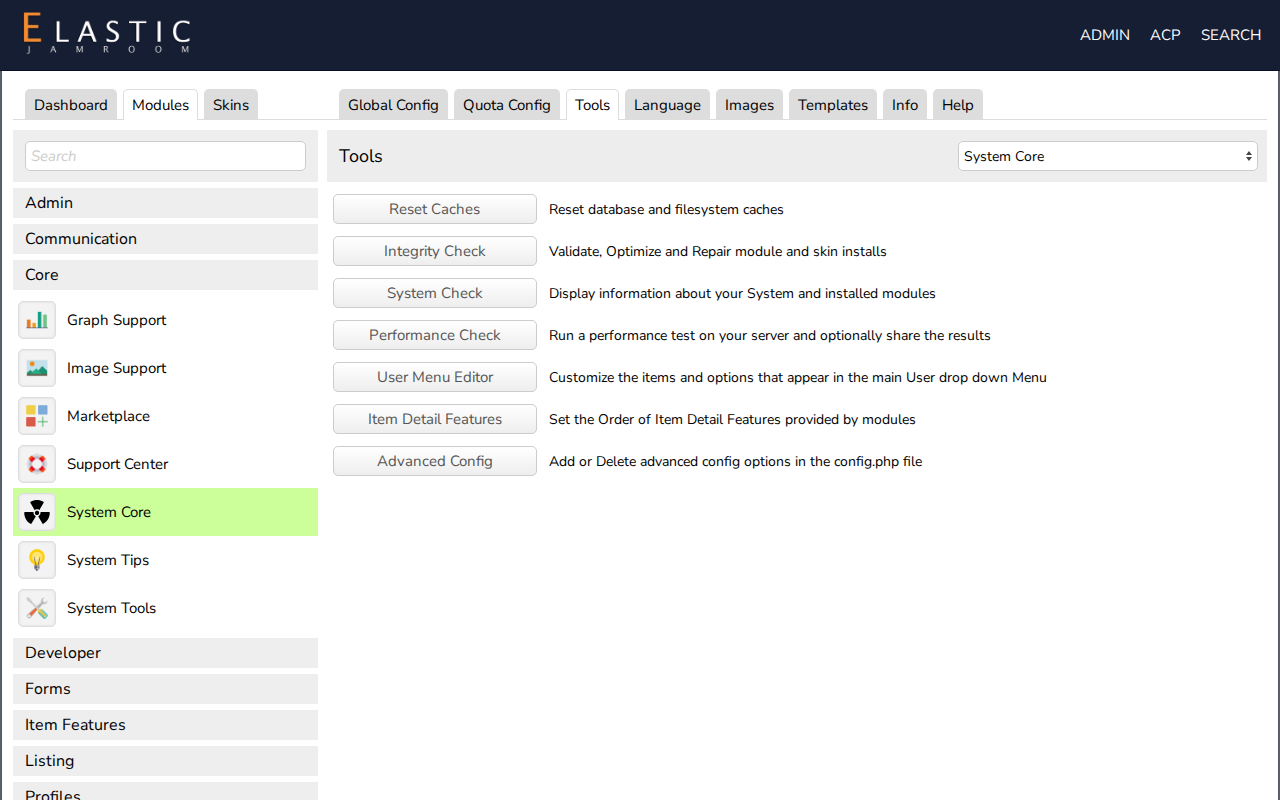
The System Core module's Tools tab (ACP > Modules > Core > System Core > Tools) holds the tools you'll use most:
- Reset Caches: clears Jamroom's caches. Use it when a change doesn't show.
- Integrity Check: checks and repairs modules, skins and database tables.
- System Check
- Performance Check
- User Menu Editor: the items in the user drop-down menu
- Item Detail Features
- Advanced Config
-
-
Getting around faster
- The module list at the top right of a Global Config, Quota Config or Tools page jumps to the same tab of another module. On Quota Config pages it keeps the selected quota.
- The Search box above the category list searches the ACP. For example, type quota browser to find the Quota Browser tool.
-
Skins
The Skins tab works like the Modules tab, but lists skins. Open a skin to set it as the active skin and to change its settings. Skins have a Style tab, for colors and fonts, that modules don't have. See Customizing Your Skin.