JAMROOM

Something's Wrong: What to Try First
Applies to: Jamroom 7.0+
Last verified: 2026-10-24
Table of Contents:
Start here
1. Run the Integrity Check
2. Reset the caches
3. Run the System Check
4. Look at the logs
If you can't get into the ACP
Clearing the caches by hand
-
Start here
Most problems are solved by one of these steps. Try them in this order before you ask for help. They're all in ACP > Modules > Core > System Core > Tools.
-
1. Run the Integrity Check
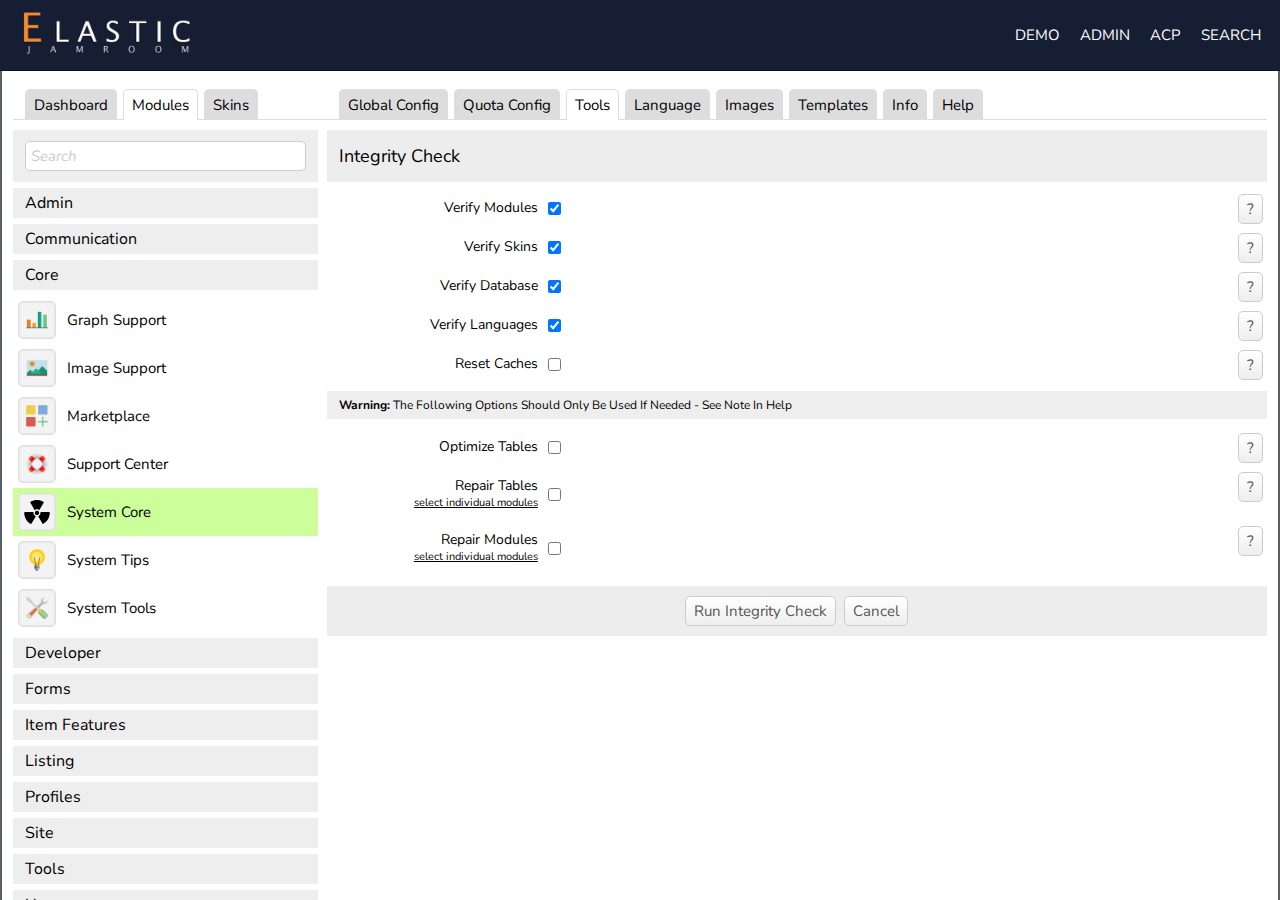
Integrity Check checks that every module and skin is installed properly, and that the database tables are as they should be. Run it after you install or update anything, and whenever something behaves oddly.
Verify Modules, Verify Skins, Verify Database and Verify Languages are checked by default, and are right for most problems. Click Run Integrity Check. The options below the warning (Optimize Tables, Repair Tables, Repair Modules) are for when you need them, such as a crashed table.
-
-
2. Reset the caches
Jamroom caches pages, templates, CSS and JavaScript so your site is fast. If a change doesn't show, such as a template edit or new CSS, reset the caches.
Reset Caches lets you choose what to reset: Database Items, Language Strings, Form Sessions, JavaScript Files, CSS Files, Sprite Icons and the template files. Check them all if you're not sure.
-
3. Run the System Check
System Check shows your server's setup: PHP version and settings, MySQL, disk space, folders Jamroom must be able to write to, and tools such as FFmpeg. Anything that needs attention is marked in red or yellow. See Run the System Check.
-
4. Look at the logs
- Activity Log (ACP > Dashboard > Activity Log) shows what Jamroom has done, with errors highlighted. A CRI (critical) or MAJ (major) entry often names the problem.
- The Error Log tab, on the same page, shows PHP errors; the Debug Log tab shows debug output.
The error message is the most useful thing to include if you ask for help.
-
If you can't get into the ACP
If the site doesn't load at all, often because of a crashed database table, use the repair script:
- On your server, in the folder Jamroom is installed in, rename
repair.php.htmltorepair.php. - Open
yoursite.com/repair.phpin your browser. - Leave Repair Database Tables, Reset Template and Database Caches and Run Offline Integrity Check checked, and click Start Repair.
- Rename the file back to
repair.php.htmlwhen you're done. Anyone could run it while it's namedrepair.php.
Until you rename it, the page just says "This file must be renamed to repair.php to function!".
- On your server, in the folder Jamroom is installed in, rename
-
Clearing the caches by hand
If even the repair script can't run, delete the folders inside
data/cacheon your server, for example with FTP. Jamroom rebuilds them as needed.