JAMROOM

Keeping a Cloned Skin Up to Date
Applies to: Jamroom 7.0+
Last verified: 2026-10-24
-
The problem
Your clone stays as it was when you made it. When the original skin is updated, you choose which of its changes you want in your clone. The Compare tool shows them.
-
Which templates differ
On the Templates tab of your clone, the Compare button shows which templates differ from the original:
- Compare greyed out: the template is the same as in the original skin.
- Compare available: the template is different. Either you changed it, or the original was updated.
If the original skin has templates your clone doesn't, they're listed under New Templates Not In This Skin. Import copies one into your clone.
-
Comparing a template
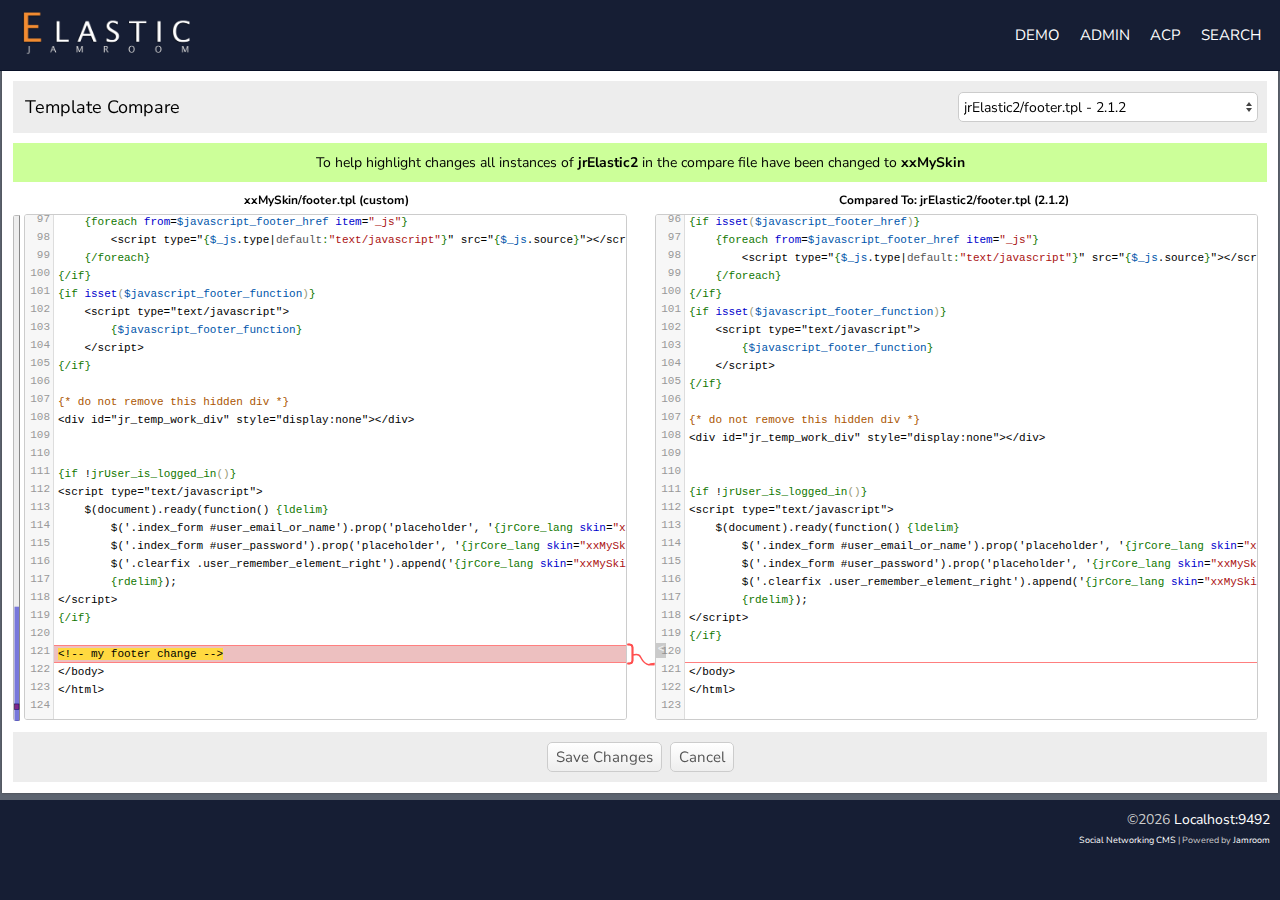
Click Compare. Your template is on the left and the original on the right, with the differences highlighted.
- The selector at the top right picks what to compare with: the original skin's template, or the same template in another skin or version.
- Edit the left side, copying in what you want from the right.
- Save Changes saves the left side as your template. Activate it on the Templates tab, as in Using the Template Editor.
The original's skin name is replaced with your clone's name in the comparison, so that only real differences are highlighted.
-
-
Compare works on any template, not just in clones: it shows your saved changes next to the template file.