JAMROOM

Changing Skin and Module Images
Applies to: Jamroom 7.0+
Last verified: 2026-10-24
-
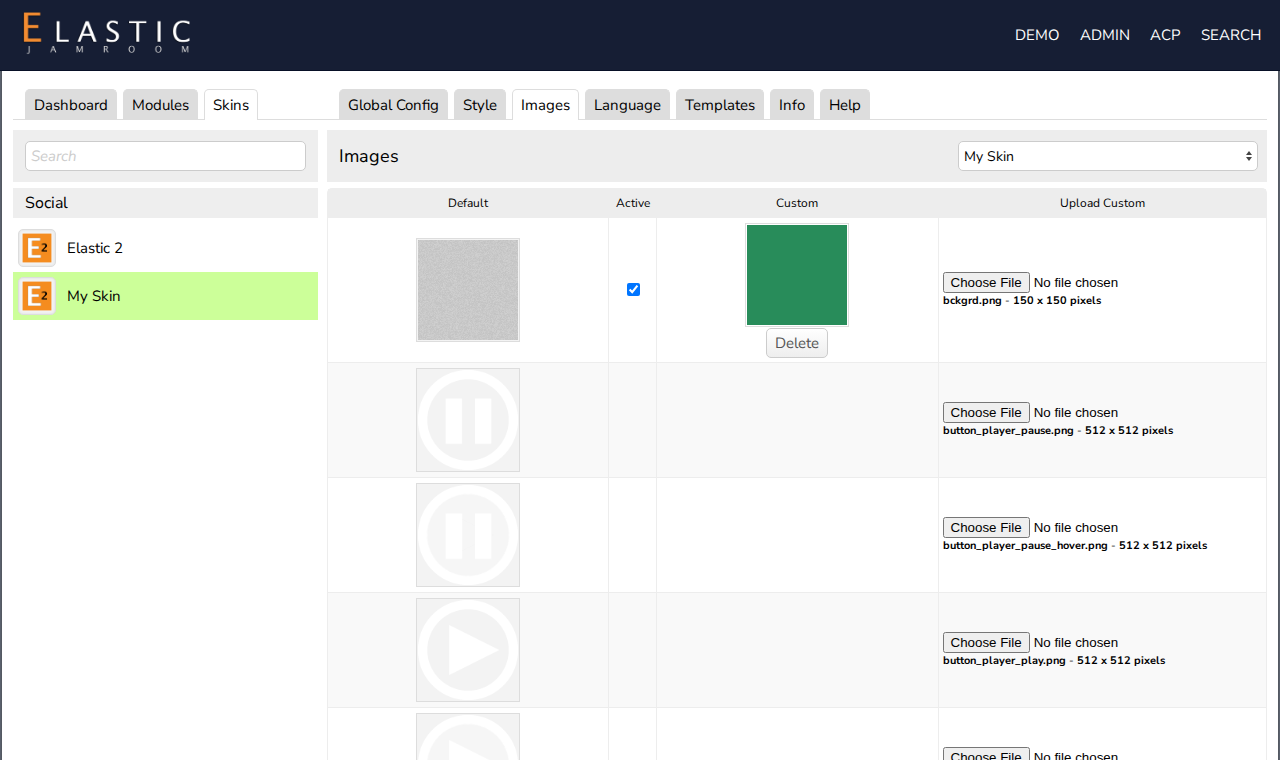
The Images tab
Skins and many modules have an Images tab. It lets you replace their images, such as the skin's logo or a module's default picture, without touching the files.
- Skin images: ACP > Skins > (skin) > Images
- Module images: ACP > Modules > (module) > Images
The table shows each image with its name and size:
Column What it is Default The image that comes with the skin or module Active Checked when your custom image is used instead of the default Custom Your image, with a Delete button Upload Custom Choose a file to replace the image -
Replacing an image
- Click Choose File next to the image, and pick your file. Use the same size as the default, shown under the file name.
- Click Save Changes at the bottom.
Your image is uploaded and used straight away: Active is checked. To go back to the default, uncheck Active and save. Your image is kept, so you can switch back. Delete removes it.
-
-
Additional images
Additional Images, at the bottom, uploads more images for your own templates. Show one in a template with
{jrCore_image image="name.png"}. The same tag shows a replaced skin image, so templates always show the active one.