JAMROOM

Skin Settings and Style
Applies to: Jamroom 7.0+
Last verified: 2026-10-24
-
Global Config
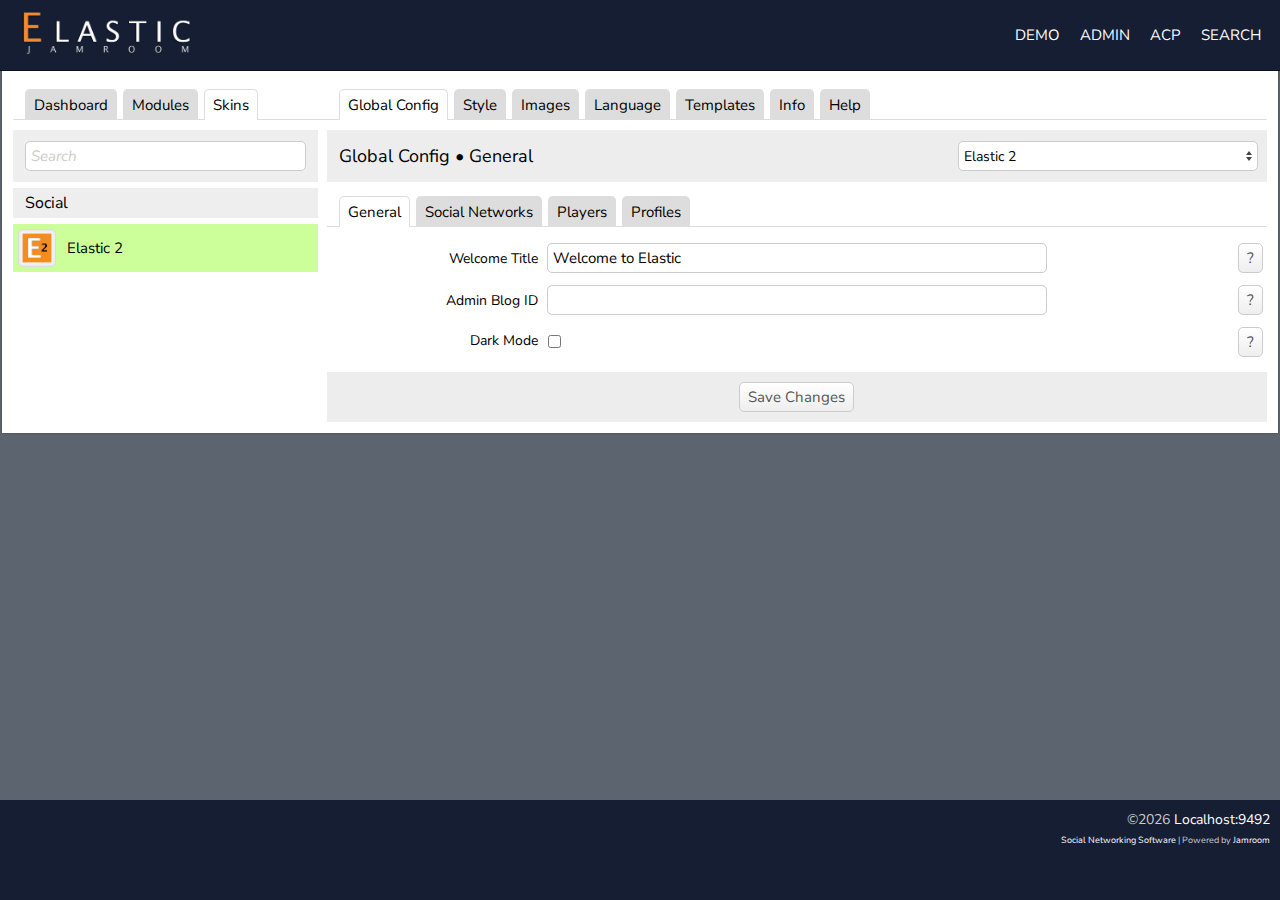
ACP > Skins > (skin) > Global Config holds the skin's own settings. They're different in every skin. Elastic 2, for example, has:
- General: the Welcome Title on the home page, an Admin Blog ID, and Dark Mode
- Social Networks: links to your social network pages
- Players: which media players to use
- Profiles: options for profile pages
Click ? next to a setting for its help. Change what you need, and click Save Changes.
-
-
Style
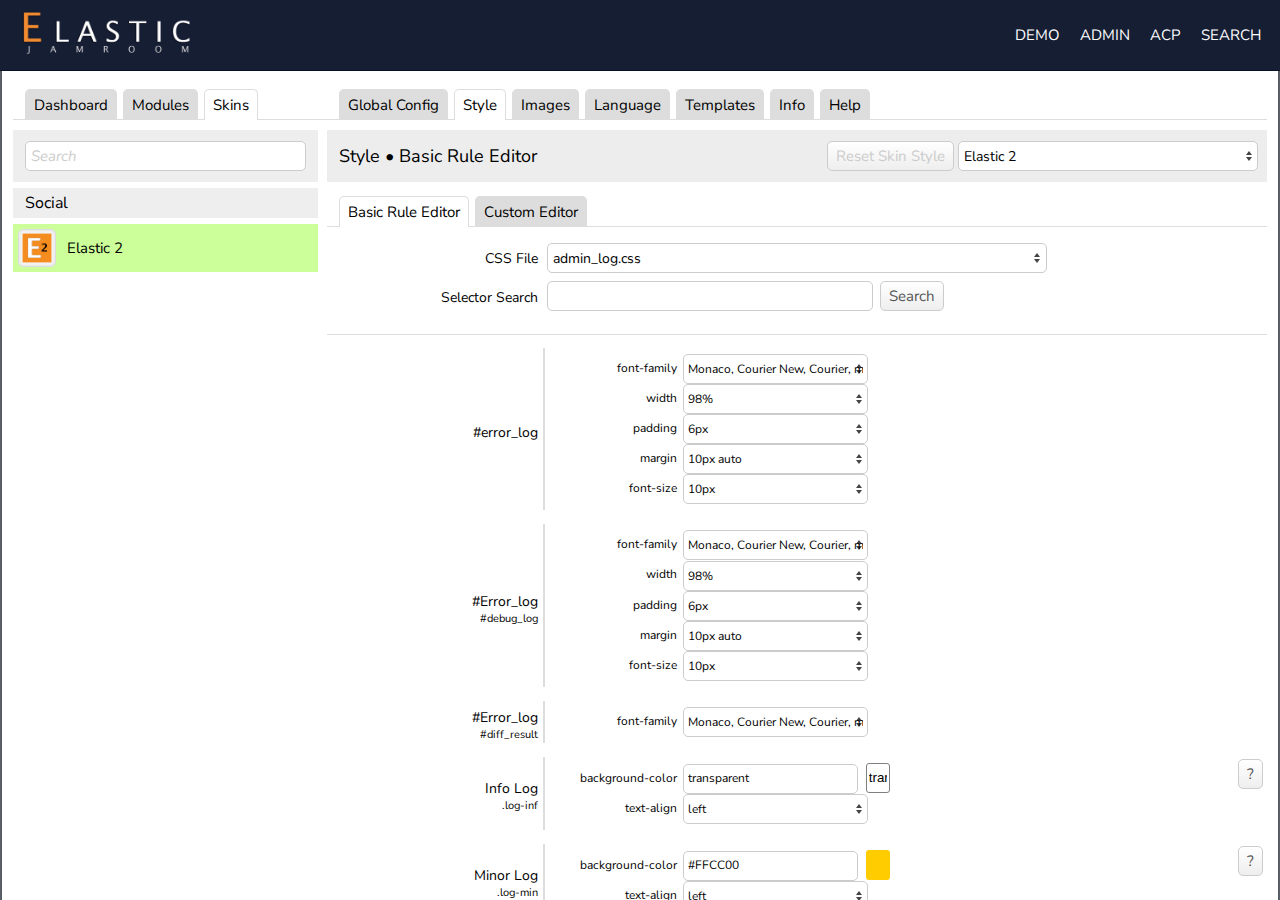
The Style tab changes the skin's CSS without editing files:
- Basic Rule Editor: choose a CSS File, or type part of a selector in Selector Search. Each CSS rule is listed with its properties, such as colors, fonts, sizes and margins. Change a value, and save.
- Custom Editor: add your own CSS rules.
Reset Skin Style removes all your style changes and goes back to the skin's own CSS.
Your changes are saved in the database, not in the skin's files, so a skin update doesn't remove them. They're also copied when you clone the skin.
-
-
Language
The Language tab lists every piece of text the skin shows, such as headings and button labels. Search for the text, change it, and save. To translate the whole site, see Translate Jamroom into Another Language.