JAMROOM

Example: a Community Site with a Shared Forum
Applies to: Jamroom 7.0+
Last verified: 2026-10-24
Table of Contents:
What we're building
Step 1: Install the modules
Step 2: Create the two quotas
Step 3: Create the community profile
Step 4: Community Quota gets forum and groups only
Step 5: Signup Quota gets no forum or groups
Step 6: Check with Quota Compare
Step 7: Choose the skin
-
What we're building
This example sets up a typical community site from a fresh install:
- Members sign up and get a profile where they can blog, upload audio and video, and add YouTube, Vimeo and SoundCloud items.
- There is one forum and one set of groups for everyone, on a shared profile called community. Members use them, but can't start their own forum or groups.
That takes two quotas:
- Signup Quota: every new member. Media modules, no forum or groups.
- Community Quota: only the community profile. Forum and groups only.
-
Forum, Groups and the media modules aren't part of Jamroom Open Source. You install them from the Marketplace in the first step, and some of them are premium modules. The screenshots on this page were taken with an older version, so details of the screens may differ.
-
Step 1: Install the modules
Go to ACP > Modules > Core > Marketplace and install and activate these modules:
- Audio
- Forum
- Groups (Groups Core), Group Discussions and Group Pages
- SoundCloud
- Video
- Vimeo
- YouTube
-
Step 2: Create the two quotas
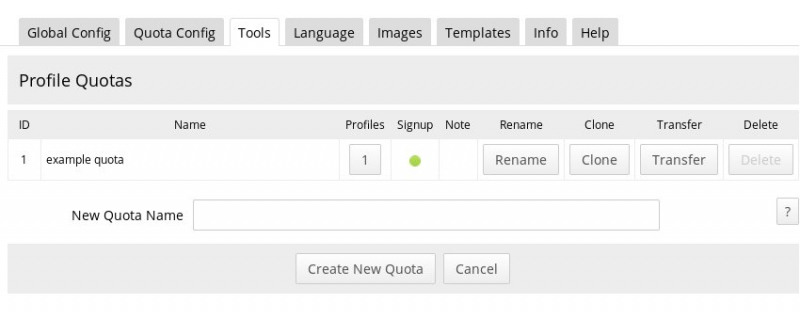
A new site has one quota, example quota. Open the Quota Browser at ACP > Modules > Profiles > Profiles > Tools > Quota Browser.
- Rename example quota to Signup Quota.
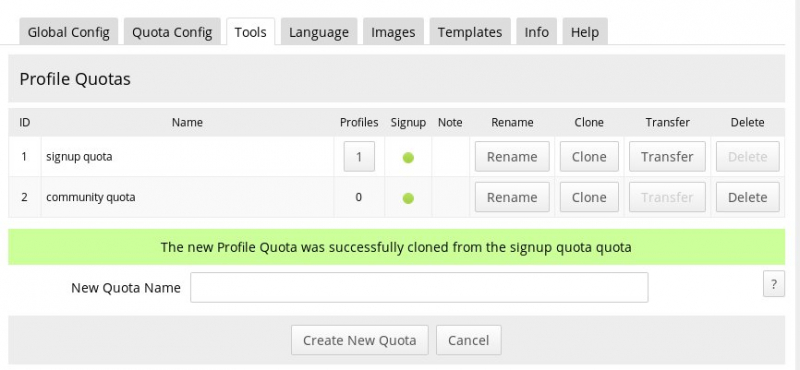
- Click Clone on it and name the copy Community Quota.
-
New members must not be able to sign up into the Community Quota. In the Quota Browser, click the Signup icon on the Community Quota row. That opens ACP > Modules > Users > Users > Quota Config for that quota. Uncheck Allow Signups and save.
-
Step 3: Create the community profile
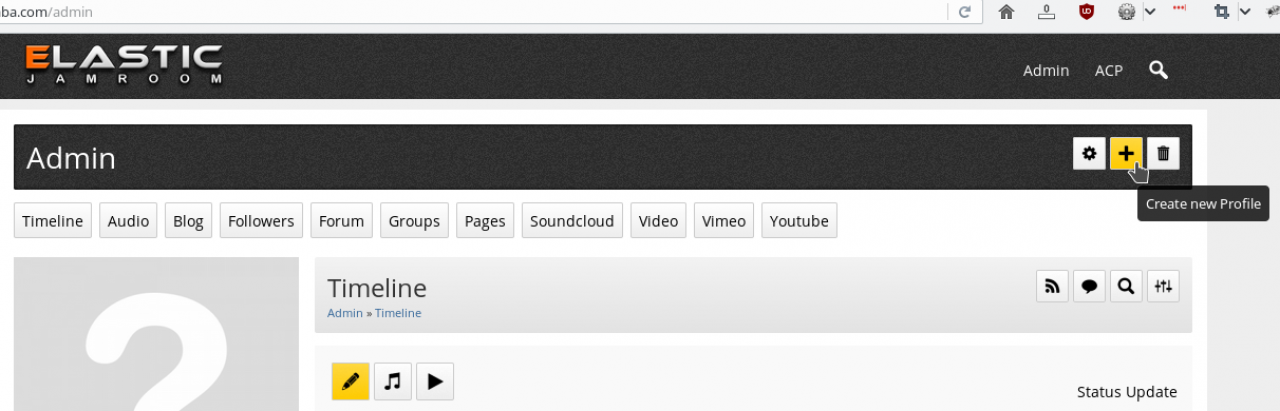
Go to your own profile (click your user name) and click create new profile.
-
-
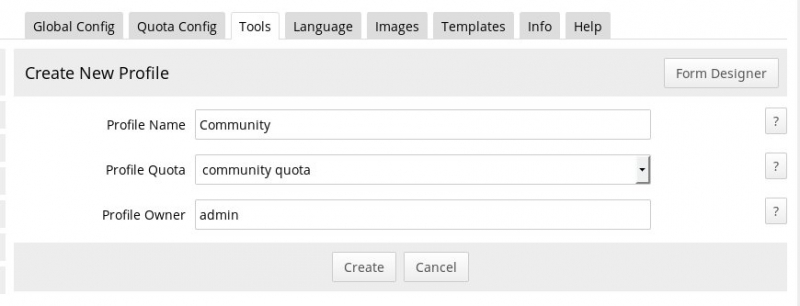
Name the profile community, choose Community Quota and keep your admin user as the owner. The forum will then be at
example.com/community/forum. -
Step 4: Community Quota gets forum and groups only
Both quotas start with the same settings, because one is a copy of the other. Take everything except the forum and groups away from the Community Quota.
For each of these modules, open its Quota Config tab, choose Community Quota in Selected Quota, uncheck Allowed On Profile and click Save Changes:
Module Where Audio ACP > Modules > Profiles > Audio > Quota Config Blog ACP > Modules > Profiles > Blog > Quota Config Page Creator ACP > Modules > Admin > Page Creator > Quota Config SoundCloud ACP > Modules > Profiles > SoundCloud > Quota Config Video ACP > Modules > Profiles > Video > Quota Config Vimeo ACP > Modules > Profiles > Vimeo > Quota Config YouTube ACP > Modules > Profiles > YouTube > Quota Config -
The module list at the top right of the Quota Config page switches to another module's Quota Config and keeps the same quota selected. That's quicker than going back to the module list each time.
-
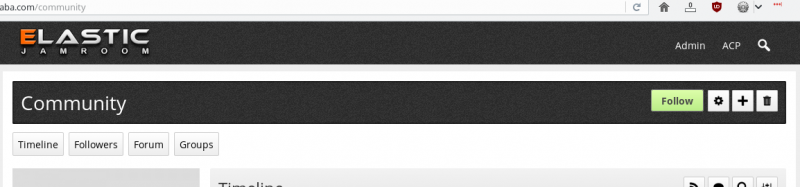
The community profile now only has the tabs it needs: Timeline, Followers, Forum and Groups. Removing a module from a quota removes its tab from every profile in that quota.
-
Step 5: Signup Quota gets no forum or groups
Now the other way round. Choose Signup Quota, uncheck Allowed On Profile and save, for:
Module Where Forum ACP > Modules > Profiles > Forum > Quota Config Groups Core ACP > Modules > Groups > Groups Core > Quota Config -
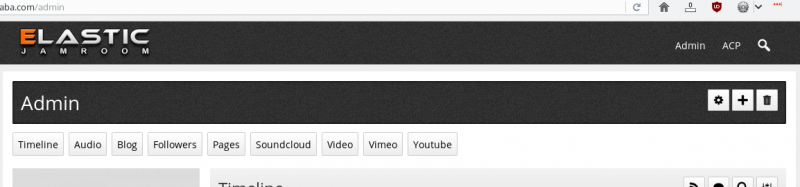
Member profiles now have Timeline, Audio, Blog, Followers, Pages, SoundCloud, Video, Vimeo and YouTube, but no forum or groups of their own.
-
Step 6: Check with Quota Compare
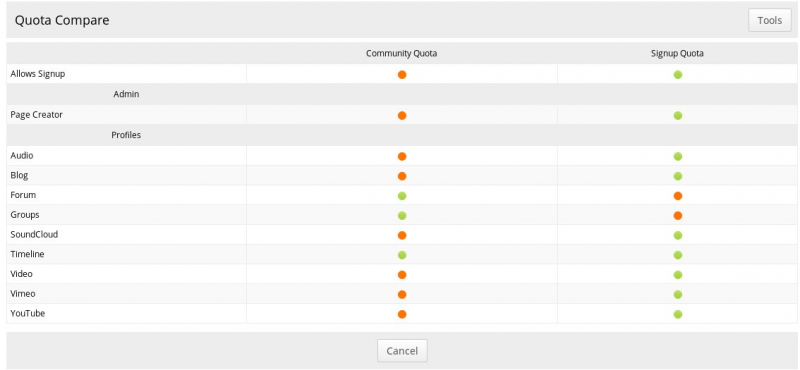
ACP > Modules > Profiles > Profiles > Tools > Quota Compare shows every quota side by side. Check that:
- only the Signup Quota allows signups
- each quota has only the modules you want
New members can now sign up, upload media to their own profiles, and use the forum and groups on the community profile.
-
Step 7: Choose the skin
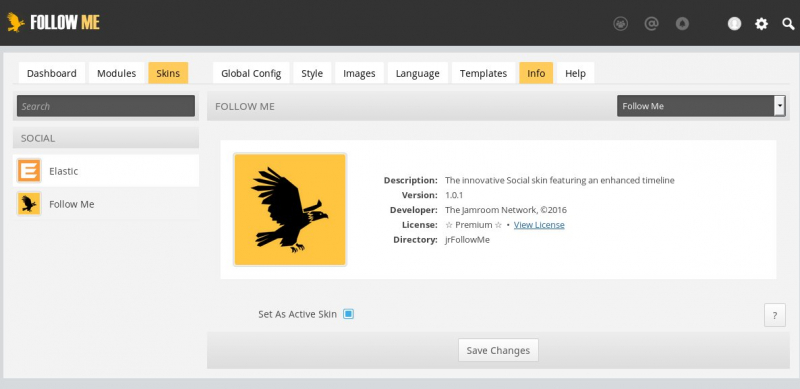
This example uses the Follow Me 2 skin. Install it from the Marketplace's Skins tab, then open it under ACP > Skins, check Set As Active Skin and save.