JAMROOM

The Form Designer
Applies to: Jamroom 7.0+
Last verified: 2026-10-24
-
What it does
The Form Designer adds your own fields to the forms modules use to create and update items. For example, you could add a Lyrics field to the audio form, or a Location field to the profile form. It also changes existing fields: their label, help text, whether they're required, and which user groups see them.
The Form Designer is part of Jamroom and only master admins can use it.
-
Open it
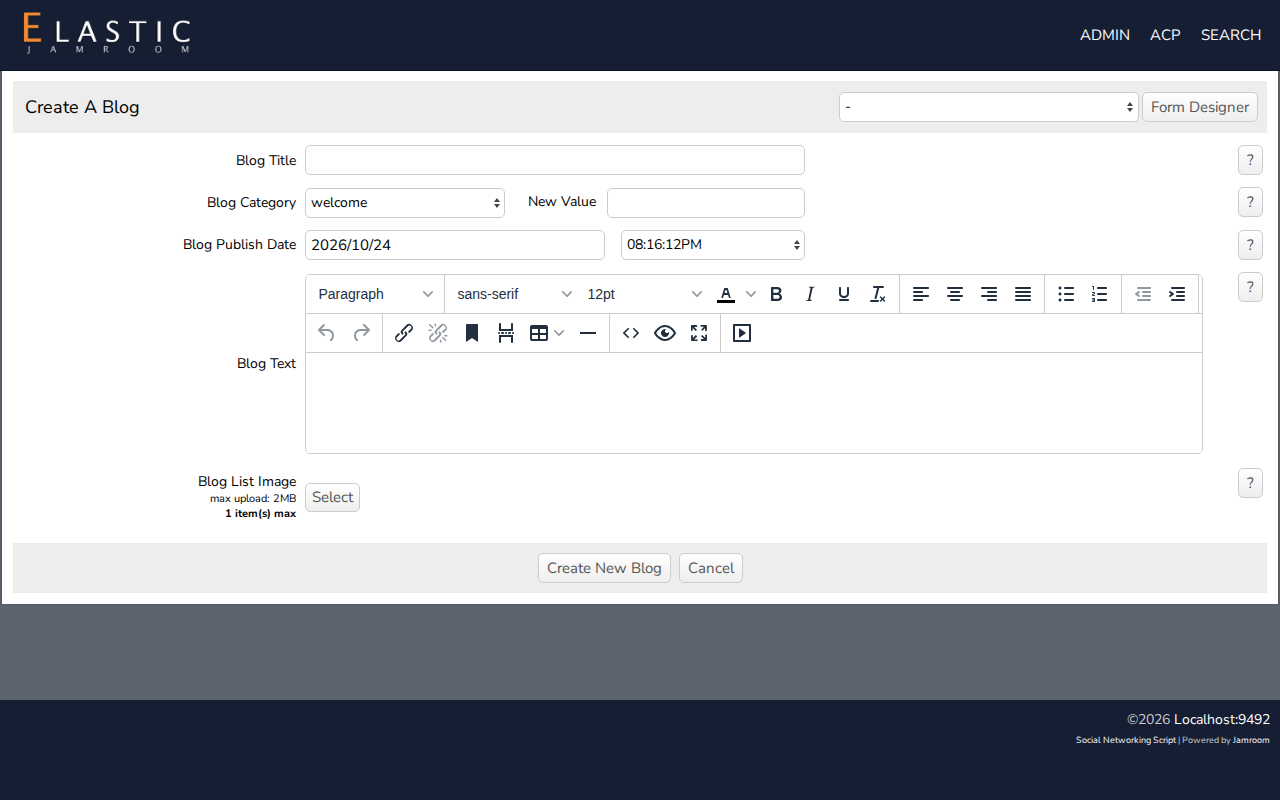
Open the form you want to change on the site, for example create in a profile's Blog section. As master admin you see a form designer button at the top of the form.
-
-
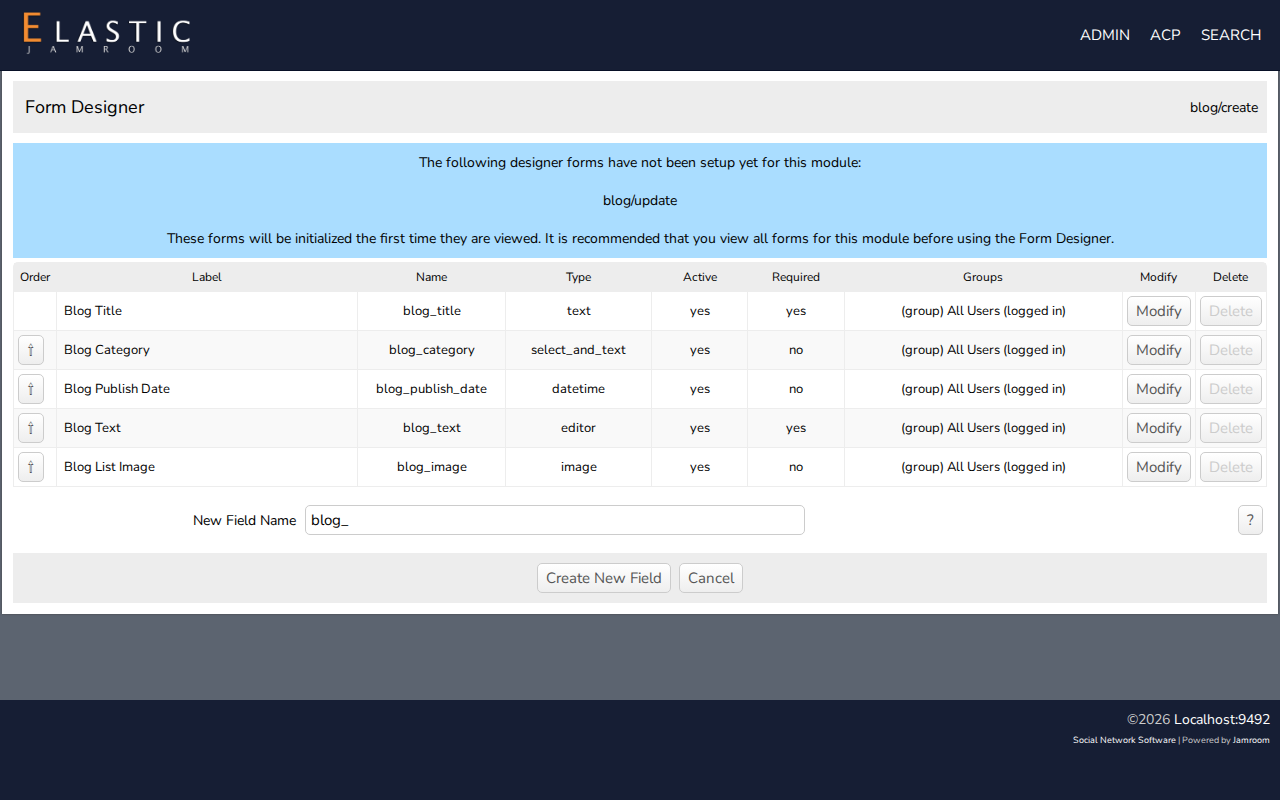
A module usually has two forms: create and update. If the Form Designer says The following designer forms have not been setup yet for this module, open the other form once (for example, edit an item) so the Form Designer knows it. Then, when you add a field, you can check add to update form (or add to create form) to add it to both at once.
-
Add a field
The Form Designer lists the form's fields, each with its Modify button. Fields you added also have Delete: a module's own fields can't be deleted.
- Enter the New Field Name. It must start with the module's prefix and be all lowercase. For a blog, that's
blog_, for exampleblog_location. - Click Create New Field.
- Set the field's options and save. The options are Label, Sub Label, Help, Field Type, Field Options (for select lists), Default, Validation, Minimum and Maximum, Display Groups (who sees the field), Required and Active.
Use Modify to change any field the same way, including a module's own fields.
- Enter the New Field Name. It must start with the module's prefix and be all lowercase. For a blog, that's
-
-
Show the field on your site
Adding a field only collects the information. To show it, add the field to the module's templates. For example, add
{$item.blog_location}to the blog's item detail template in ACP > Modules > Profiles > Blog > Templates, or to your skin's copy of it.See Customizing Your Skin for changing templates. The
{debug}template function shows every value available in a template.