JAMROOM

Embed an iFrame in a Page
Applies to: Jamroom 7.0+
Last verified: 2026-10-24
Table of Contents:
What this is for
1. Allow the domain
2. Allow iframe tags for the quota
3. Add the iframe to a page
If it says "This iframe is not allowed"
-
What this is for
Many services give you an
iframecode to show their content on your site, such as a Google Calendar or a map. For safety, Jamroom doesn't allowiframetags in members' text until you allow them. Then it only shows iframes from domains you list.You need:
- the iFrame Control module (from the Marketplace)
- its Validate iframes text formatter turned on for the quota
iframeadded to the quota's Allowed HTML Tags- the iframe's domain added to the Allowed Domains
-
1. Allow the domain
Look at the
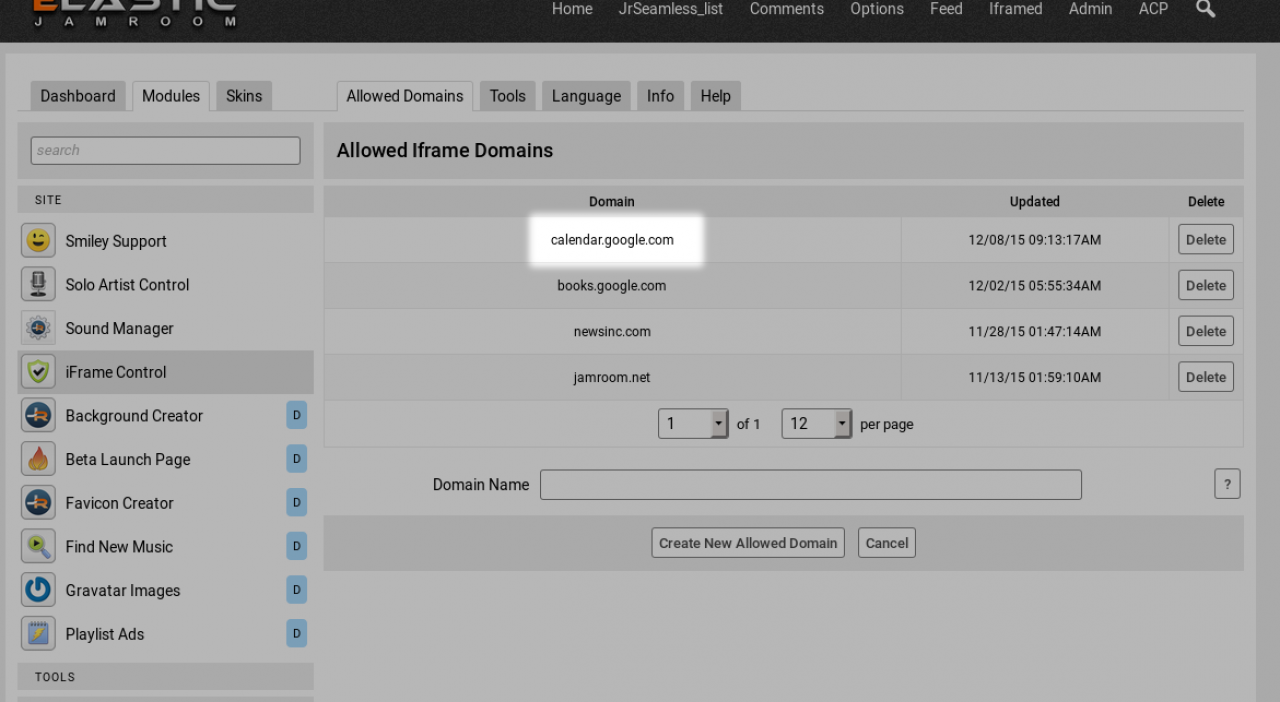
srcaddress in your iframe code. For a Google Calendar it starts withhttps://calendar.google.com/..., so the domain iscalendar.google.com.Open ACP > Modules > Site > iFrame Control (the Allowed Domains tab), add the domain and save.
-
-
2. Allow iframe tags for the quota
Open ACP > Modules > Core > System Core > Quota Config and choose the quota of the profile that will hold the iframe.
- In Allowed HTML Tags, add
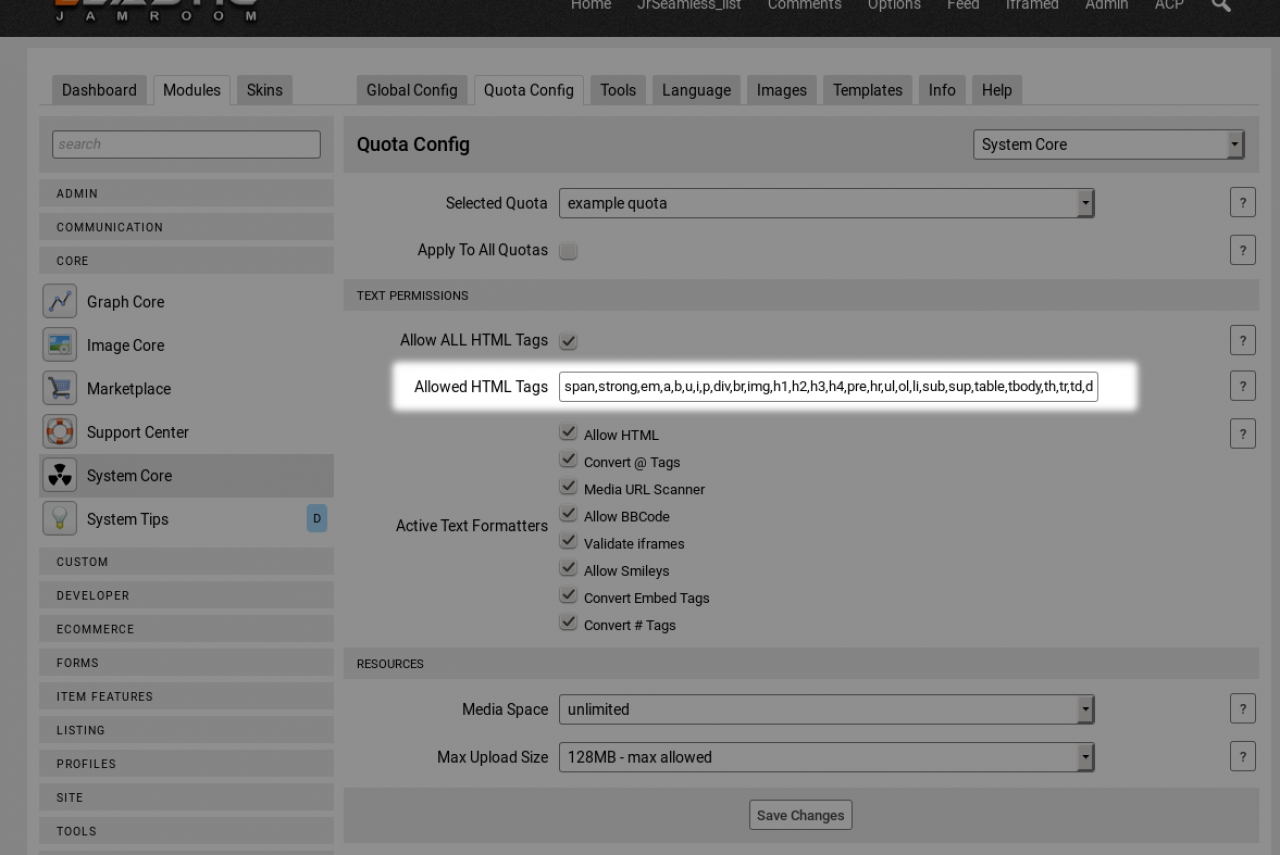
iframeto the end of the list. The default list is:
span,strong,em,a,b,u,i,p,div,br,img,h1,h2,h3,h4,pre,hr,ul,ol,li,sub,sup,table,tbody,th,tr,td- In Active Text Formatters, check Allow HTML and Validate iframes.
Save. Only give iframes to quotas you trust.
- In Allowed HTML Tags, add
-
-
3. Add the iframe to a page
For example, on a profile page made with Page Creator:
- Open the profile's Pages section (Page Creator must be allowed for the quota) and create a page.
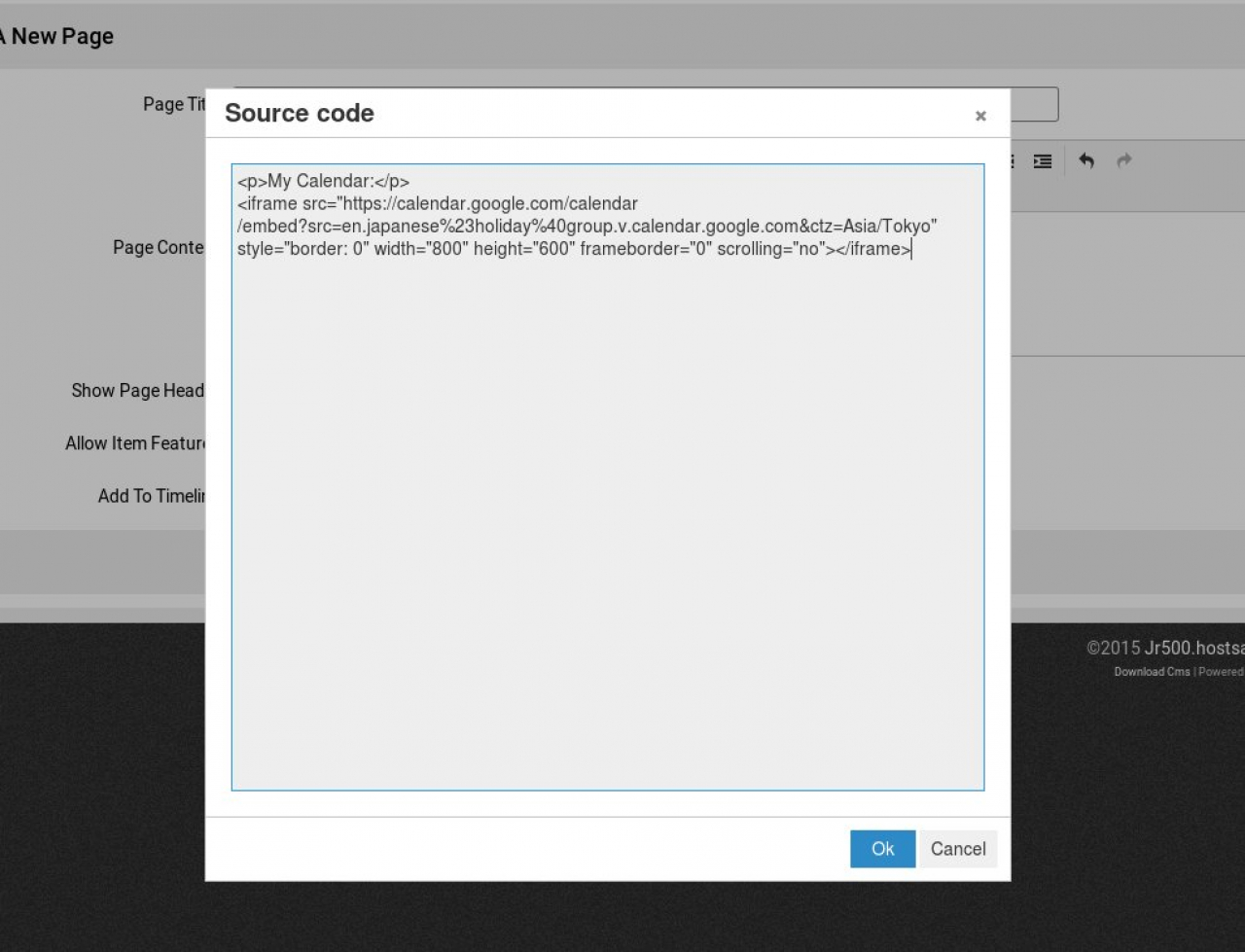
- In the editor, click the Source code button and paste the iframe code.
- Save the page.
-
-
If it says "This iframe is not allowed"
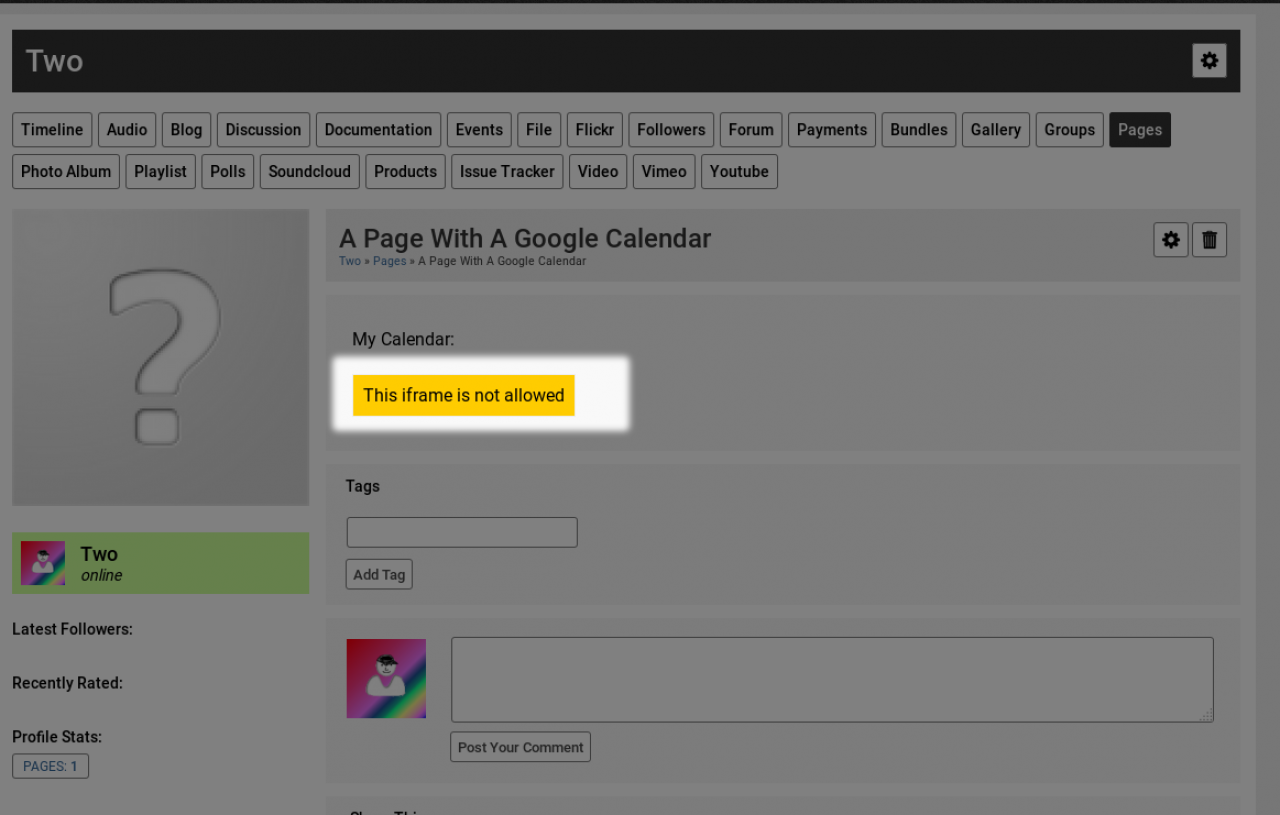
That message replaces any iframe whose domain isn't on the Allowed Domains list. Check that the domain you added exactly matches the domain in the iframe's
src. -