JAMROOM

Your jamroom.net Account and the Marketplace
Applies to: Jamroom 7.0+
Last verified: 2026-10-24
Table of Contents:
Why you need a jamroom.net account
Create a jamroom.net account
Find your Marketplace System ID
Enter it on your site
Using the Marketplace
-
Why you need a jamroom.net account
Your site gets modules, skins and updates from the Marketplace, which is run from jamroom.net. To use it, your site needs the Marketplace System ID of a jamroom.net account.
A jamroom.net account also gives you:
- the Support Forum, where you can ask questions
- comments on these documentation pages
- your licenses, including Jamroom Premium, and your Jamroom Hosted servers
-
Create a jamroom.net account
Sign up at jamroom.net/user/signup and activate the account with the link in the email you receive.
-
If you entered your email address in the installer's Email Address field, the installer already connected your site to the Marketplace: the field is labeled Creates Marketplace Account. Check the Marketplace line in the System Check. If it's green, skip to Using the Marketplace below.
-
Find your Marketplace System ID
Log in to jamroom.net and open the Licenses section of your account (in your user menu). It shows your Marketplace Email and Marketplace System ID.
Licenses you have on jamroom.net, Jamroom Premium included, belong to this System ID. That is how the Marketplace knows what your site can install.
-
Enter it on your site
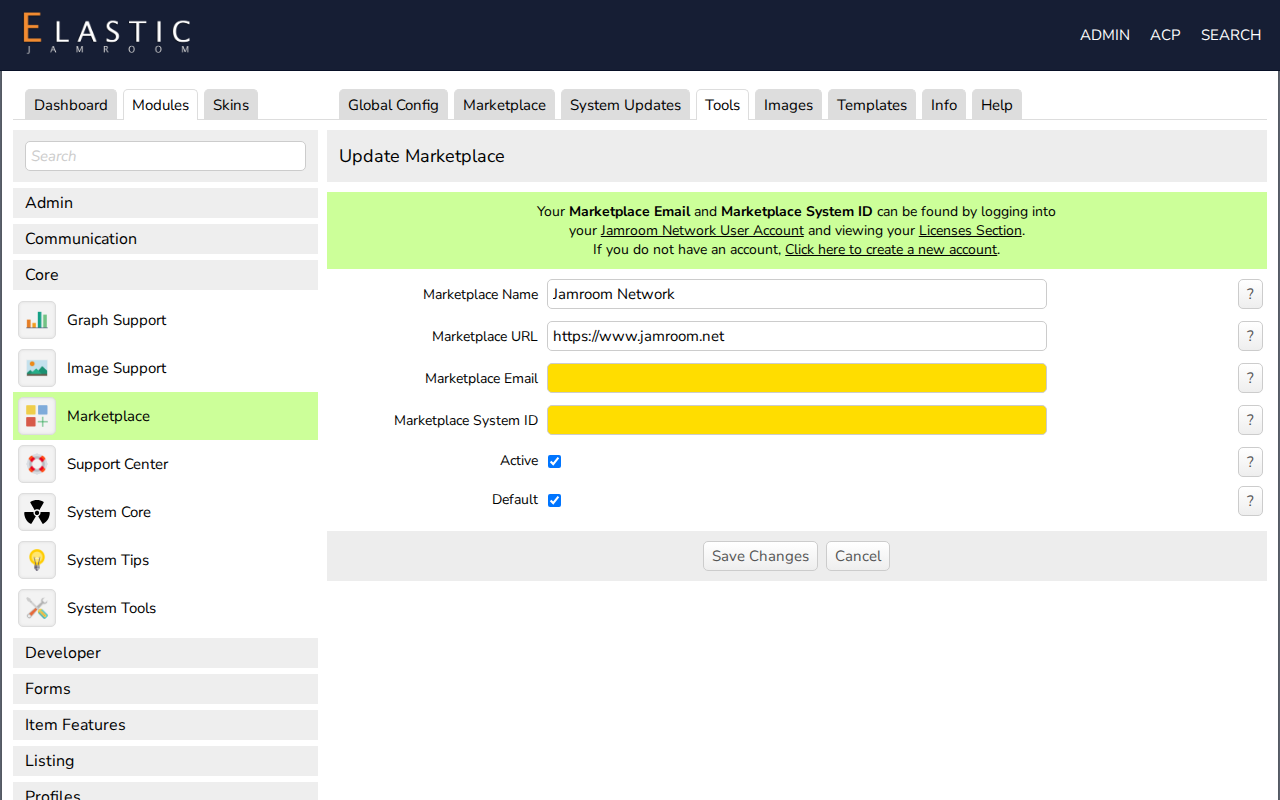
Open the Update Marketplace form in either of these ways:
- In the System Check, click Update Marketplace Config on the Marketplace line.
- Go to ACP > Modules > Core > Marketplace > Tools > Marketplace Systems and click Modify for Jamroom Network.
Enter your Marketplace Email and Marketplace System ID, leave the other fields as they are, and save. The System Check's Marketplace line then turns green.
-
-
Using the Marketplace
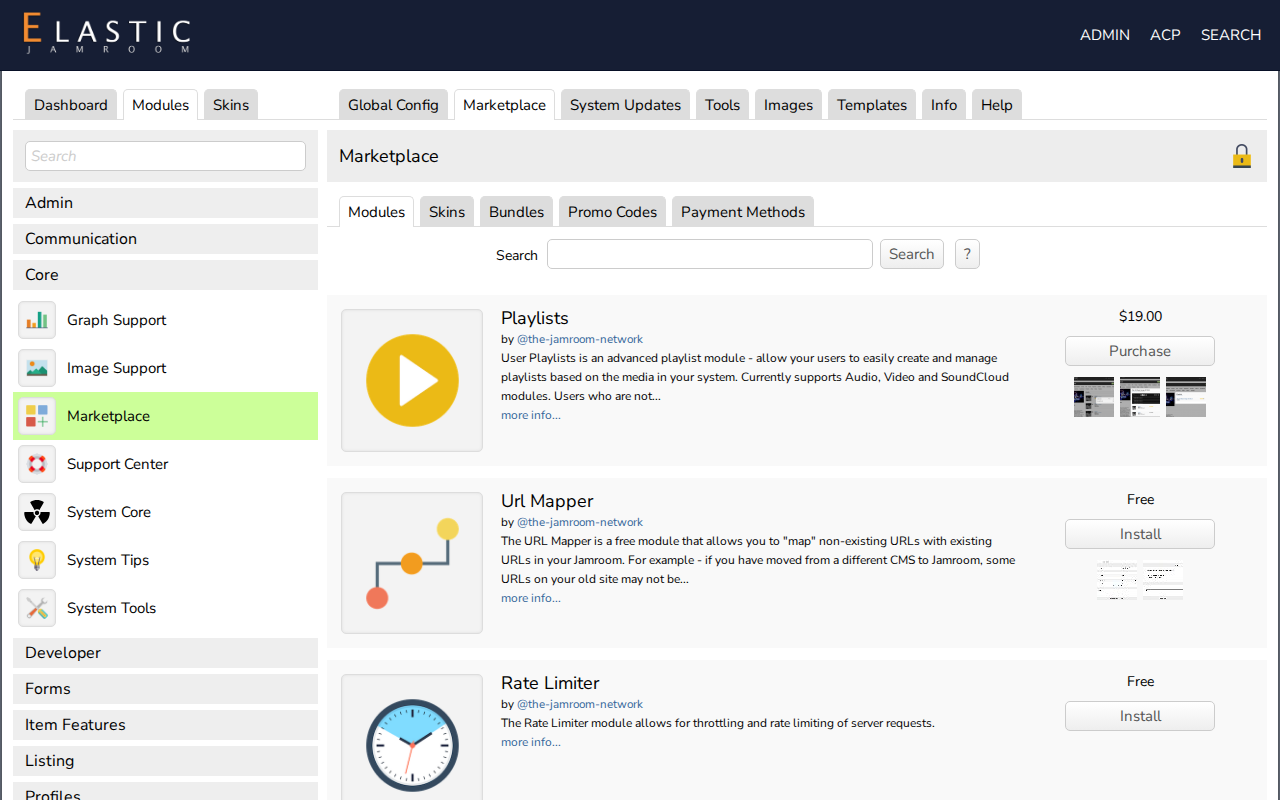
Open the Marketplace at ACP > Modules > Core > Marketplace. The tabs list:
- Modules
- Skins
- Bundles: sets of modules for a kind of site
Each item shows whether it's free or premium. Installing one takes a click, and you don't upload any files.
The System Updates tab lists updates for everything you have installed. Check it regularly to keep your site up to date.
-
-
Next: Key Concepts