JAMROOM

Create the Admin Account
Applies to: Jamroom 7.0+
Last verified: 2026-10-24
Table of Contents:
The first account is the master admin
Create the account
Logged in
The System Check
-
The first account is the master admin
The first account created on a new Jamroom site automatically becomes the master admin. The master admin can open the Admin Control Panel (ACP), install modules and skins, and change every setting on the site. Every account created after it is a normal member account.
Create this account straight after installing, before anyone else finds your site.
-
Installed with Softaculous or on Jamroom Hosted? Your admin account already exists. Log in with it and skip to The System Check below.
-
Create the account
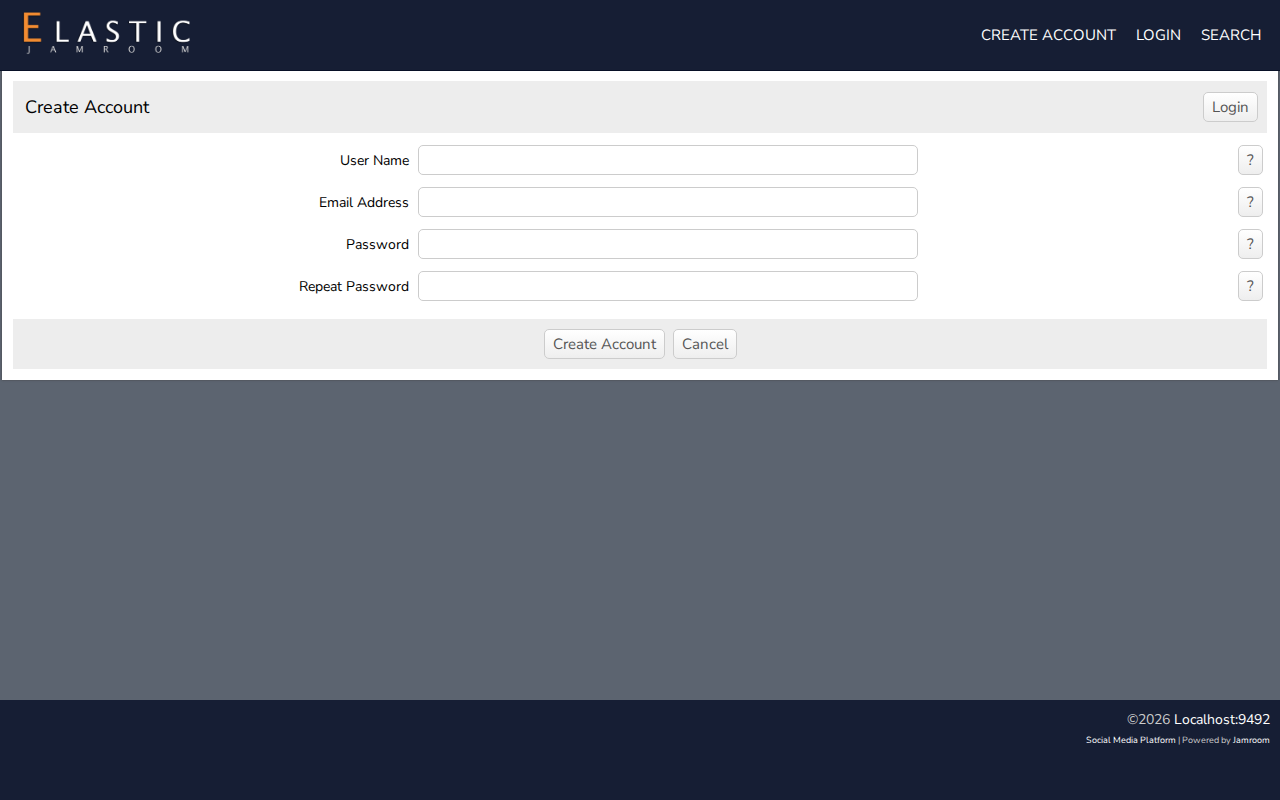
Click Create Admin Account on the installer's success page, or Create Account in the site header. Enter a user name, your email address and a password (twice), then click create account.
-
-
Logged in
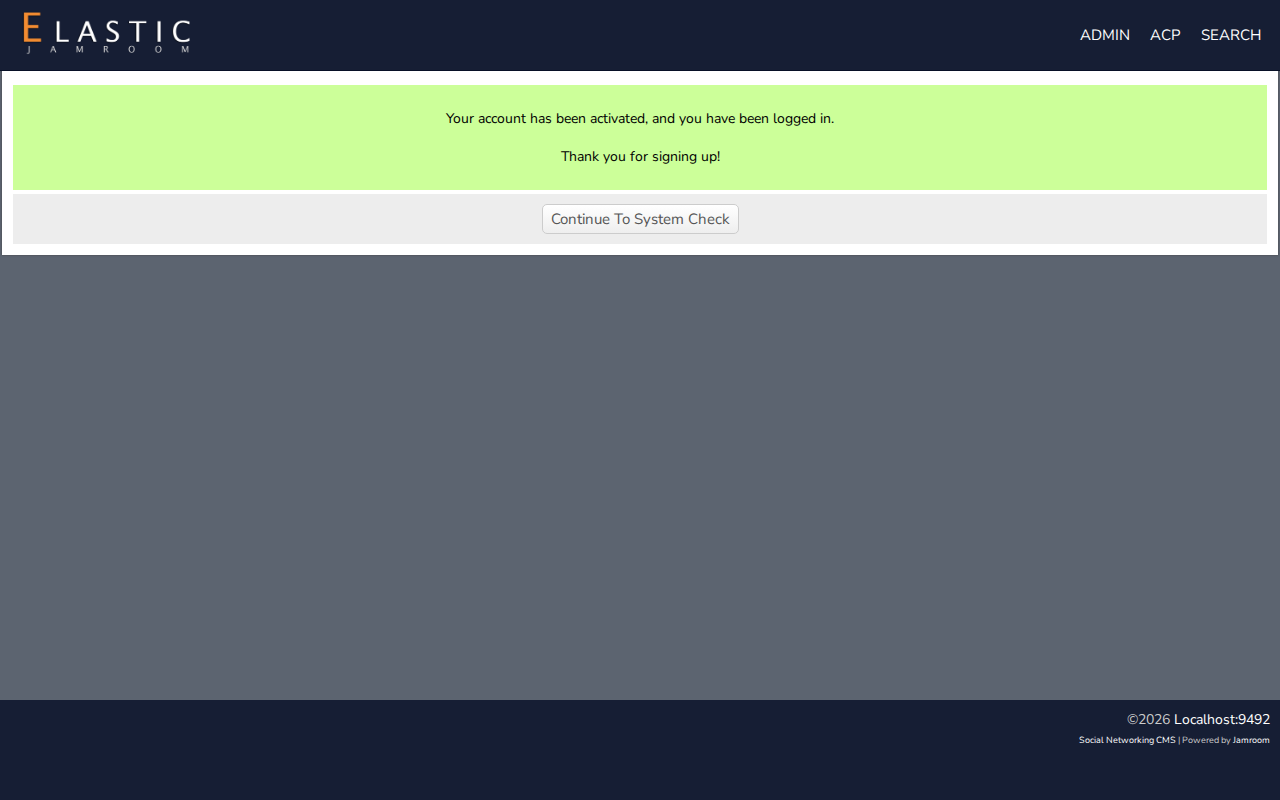
The admin account is activated and logged in immediately: Your account has been activated, and you have been logged in. Click Continue To System Check.
-
-
The System Check
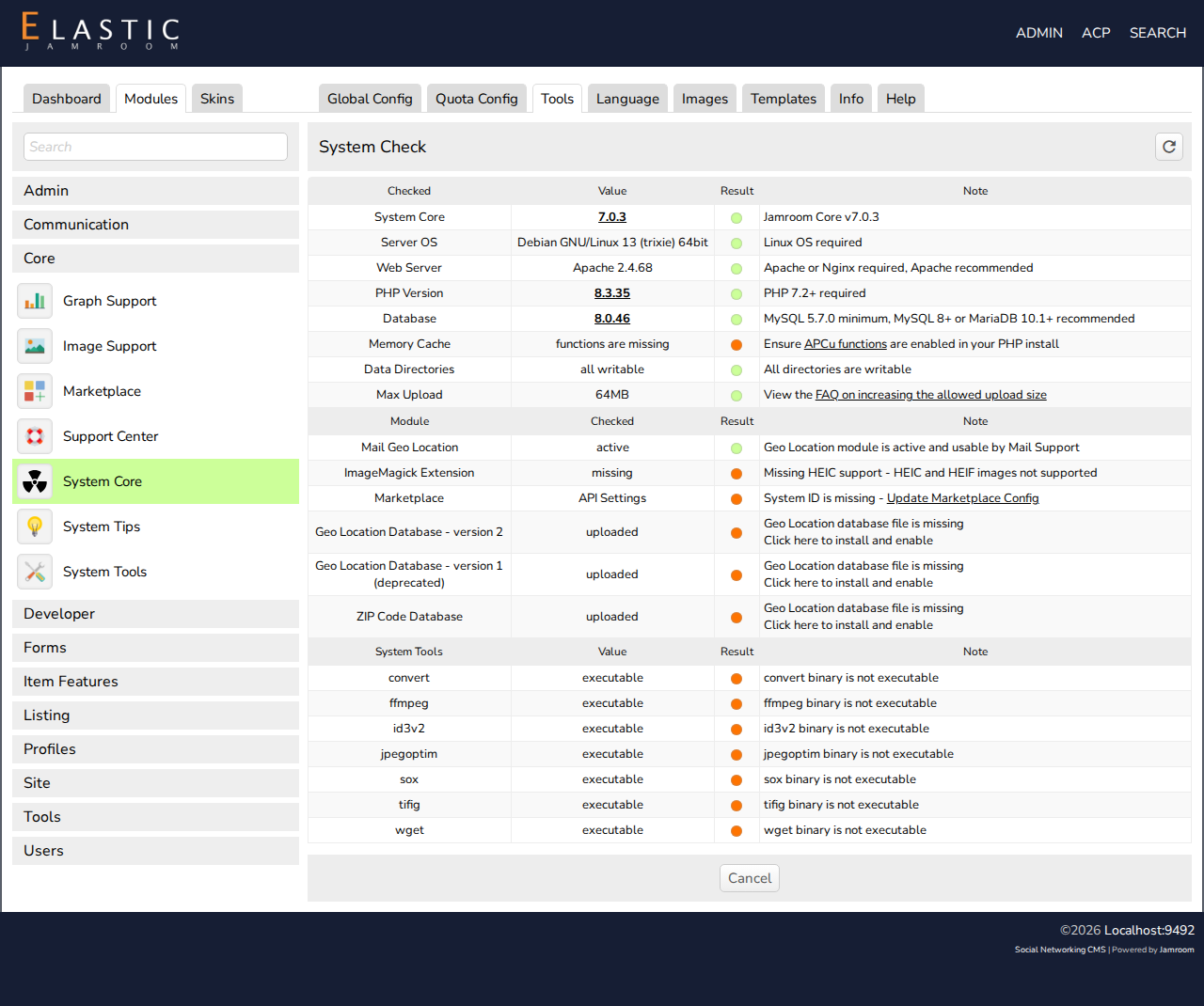
The System Check tests your server and your Jamroom setup. Every line has a result:
- Green: fine.
- Yellow or red: something needs attention. The Note column says what.
On a new install, a few lines usually need attention:
Line What to do Marketplace: System ID is missing Connect your site to the Marketplace. See Your jamroom.net Account and the Marketplace. System Tools: binary is not executable Jamroom couldn't make the media tools executable itself: set permission 755 on them. See Server Requirements. Memory Cache: Ensure APCu functions are enabled Optional: ask your host to enable the APCu PHP extension. Max Upload Raise PHP's upload limit if your members will upload larger files. Geo Location Database: file is missing Optional: click Click here to install and enable if you want location features. Some fixes need your hosting provider, since not every host lets you change PHP settings yourself.
-
-
Open the System Check again at any time from ACP > Modules > Core > System Core > Tools > System Check. In the Elastic 2 skin it's also in the header menu: point at ACP, then system tools > system check.