JAMROOM

Banned Items
Applies to: Jamroom 7.0+
Last verified: 2026-10-24
-
What it does
Banned Items keeps unwanted visitors and words off your site:
- IP addresses that may not use the site at all
- names that can't be used as a user name, profile name or profile address
- email addresses or domains that can't sign up
- forbidden words that members can't use in names, titles and other checked fields
- automatic blocking of vulnerability scanners and bad bots
ACP > Modules > Admin > Banned Items
-
Banning an item
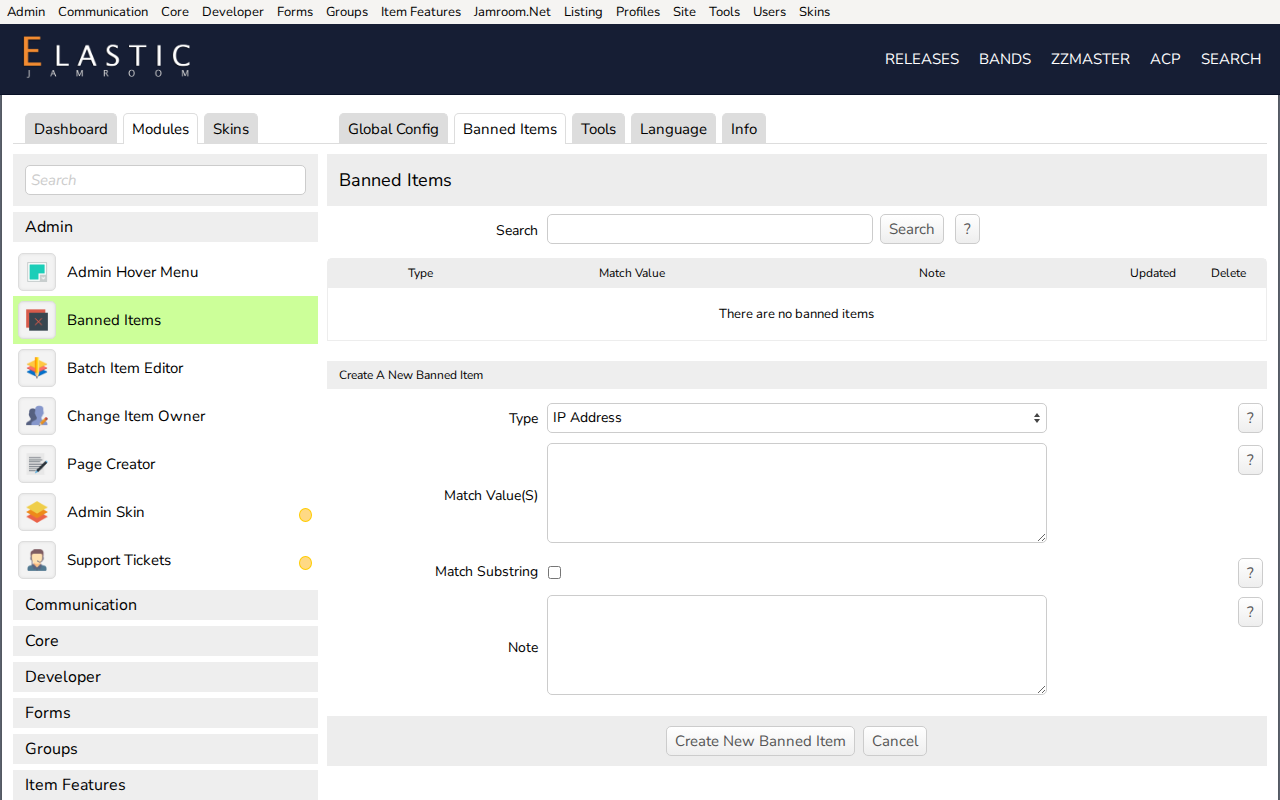
On the Banned Items tab:
- Choose the Type:
- IP Address
- Profile or User Name
- Email Address or Domain
- Forbidden Word
- Enter the Match Value(s), one per line to ban several at once.
- For names, email addresses and words, check Match Substring to also ban anything that contains the value. Without it, only the whole word or value matches.
- Add a note if you like, and click Create New Banned Item.
You can't ban your own IP address.
What happens:
Type What happens IP Address Every request from it gets You do not have permission to access this server. A partial IP, such as 192.168., bans the whole range.Profile or User Name It can't be used as a user name, profile name or profile address. That's useful to keep names like adminorsupportfor yourself.Email Address or Domain Sign-ups with that address or domain are refused. Forbidden Word When a member (not an admin) submits a form, its name and title fields, and fields that ask for the check (comments, for example), are refused with Your entry contains the following text which is not allowed:. A member's search for the word finds nothing. Tools > Test Item checks a value against your banned items without saving anything.
- Choose the Type:
-
-
Automatic blocking
When Enable Blocking is on (in Global Config), requests whose address contains a Blocked URL String, or whose browser contains a Blocked User Agent, are refused. Their IP is put in a one-day timeout. Those are the requests vulnerability scanners make, for example for
.envor.git.Timed-out IPs are listed in Tools > Blocked IPs, where you can remove one.
-
Global Config
Setting What it does Enable In Forms Checks name and title fields of forms submitted by members against your banned items (default: on) Enable Blocking Turns on the automatic blocking above (default: off) Log Blocked Requests Adds an Activity Log entry each time an IP is put in timeout (default: on) Blocked URL Strings One per line. The default list covers common scanner targets such as .env,.gitand.docker.Blocked User Agents One per line, such as masscan,feroxbusterandzgrab -
For developers
Add
'ban_check' => 'word'to a form field to check it against the forbidden words. In code,jrBanned_is_banned($type, $value)returns the matching banned value, or false.$typeisip,name,emailorword. Call it throughjrCore_run_module_function()so your module still works when Banned Items isn't active:
if ($ban = jrCore_run_module_function('jrBanned_is_banned', 'word', $text)) {
    // $text contains the banned word $ban
}