JAMROOM

Quotas
Applies to: Jamroom 7.0+
Last verified: 2026-10-24
Table of Contents:
What a quota is
The Quota Browser
Which quota new members join
Setting up a quota
Compare your quotas
Moving one profile to another quota
How many quotas?
-
What a quota is
A quota is a group of profiles that get the same features and limits. It decides which modules the profiles can use, how many items they can create, how much they can upload, and whether new items need approval. Every profile is in exactly one quota. Key Concepts has an example.
A new site has one quota, example quota, and every new profile goes into it until you add more.
-
The Quota Browser
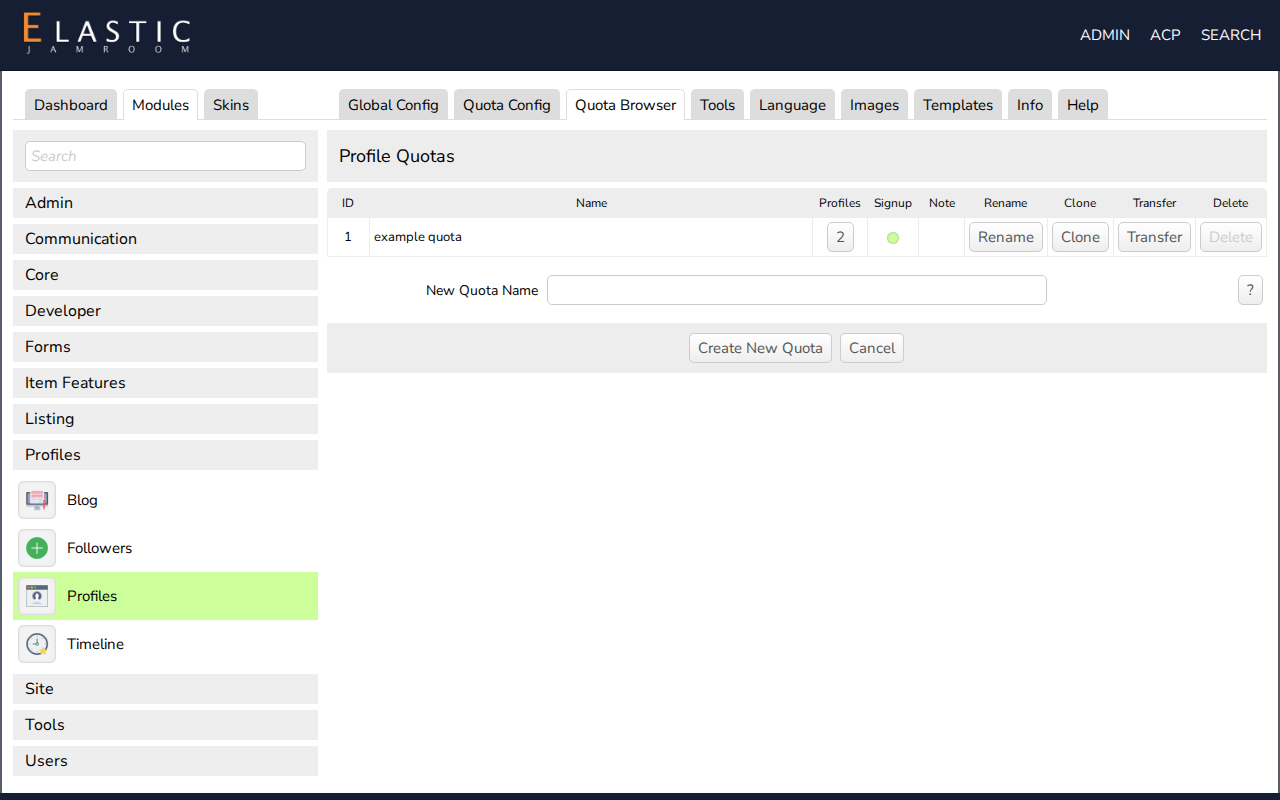
Manage quotas at ACP > Modules > Profiles > Profiles > Tools > Quota Browser. Each row is a quota, with the number of profiles in it:
Column What it does Signup Whether new members can sign up into this quota. Click it to change Allow Signups. Rename Change the quota's name. Clone Make a new quota with the same settings: the quickest way to start a new one. Transfer Move every profile in this quota to another quota. Delete Delete the quota. Only possible when no profiles are in it: transfer them first. To add an empty quota, enter a New Quota Name at the bottom and save.
-
-
Which quota new members join
- If one quota allows signups, new members join it.
- If several do, the signup form lets people choose.
- Default Profile Quota in ACP > Modules > Profiles > Profiles > Global Config is the quota preselected on the signup form.
Allow signups only into quotas members may choose themselves. Move members into other quotas yourself, or let them switch (see Let Members Switch Quotas).
-
Setting up a quota
Each module's Quota Config tab holds its settings per quota:
- Choose the quota in Selected Quota.
- Change the settings. Allowed On Profile gives the quota's profiles the module.
- Click Save Changes.
Apply To All Quotas saves the same settings for every quota at once, and overwrites what each quota had.
Some important settings live outside the modules' own tabs:
- System Core > Quota Config: text formatters, allowed HTML, Media Space (disk space per profile) and Max Upload Size
- Users > Quota Config: signups, signup method and power users
- Profiles > Quota Config: quota name, default profile privacy
-
Compare your quotas
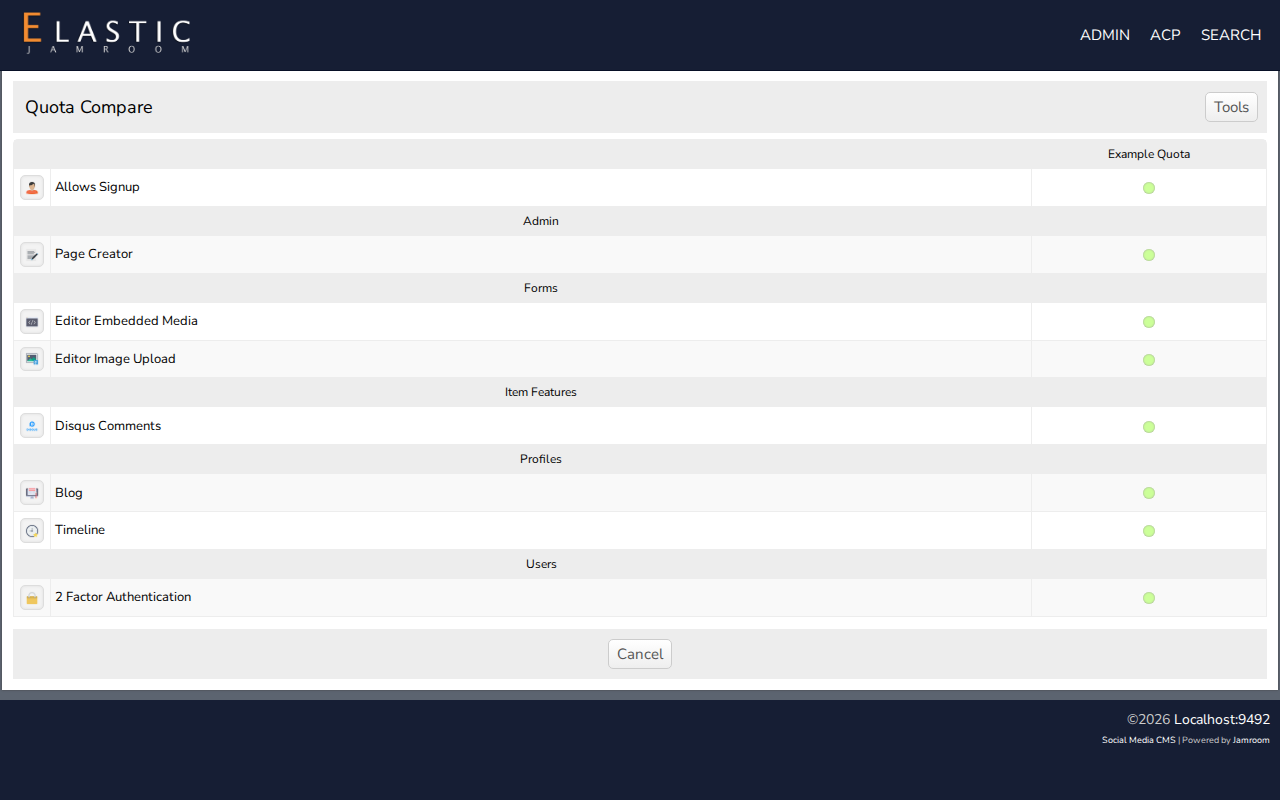
ACP > Modules > Profiles > Profiles > Tools > Quota Compare shows every quota side by side: which allow signups, and which modules each one is allowed. It's the quickest way to check your setup.
-
-
Moving one profile to another quota
Open the profile's settings page as an admin and change Profile Quota under Admin Options. To move every profile in a quota, use Transfer in the Quota Browser.
-
How many quotas?
As many as your site needs: there's no limit. One is enough if every member gets the same features. Common setups are Members and Premium Members, Fans and Artists, or Students and Teachers.