JAMROOM

Cloning a Skin
Applies to: Jamroom 7.0+
Last verified: 2026-10-24
-
Why clone a skin
When a skin is updated in the Marketplace, its files are replaced. A clone is your own copy of a skin, under a new name. Updates never touch it, so it's the safe place for your changes.
Clone the skin before you change its templates, even for small changes.
-
Before you start
On a new site, run an Integrity Check first (ACP > Modules > Core > System Core > Tools > Integrity Check). The clone then remembers which skin it came from. Without that, the Compare highlighting and Create A New Template In This Skin don't work for the clone. See Keeping a Cloned Skin Up to Date.
-
Cloning
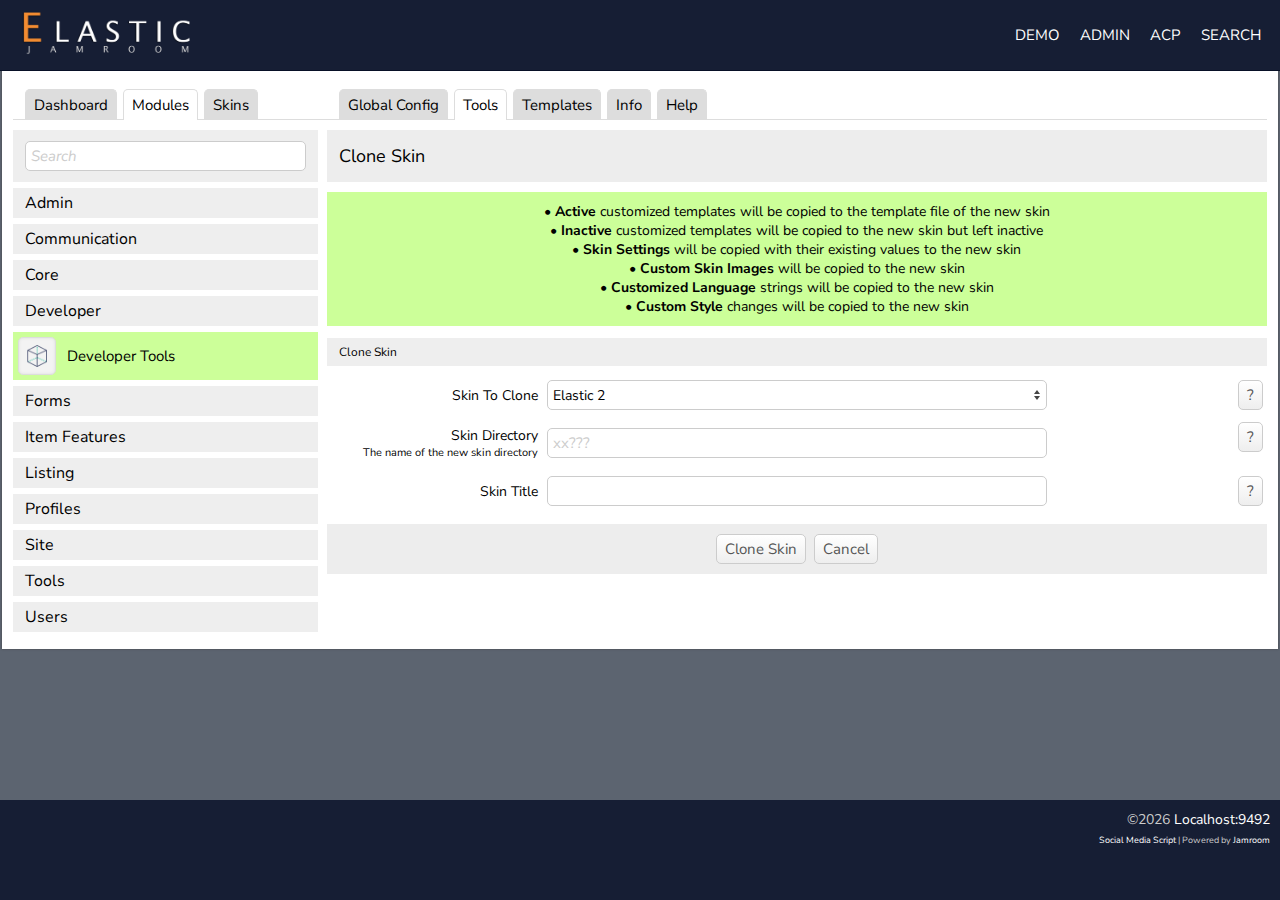
- Go to ACP > Modules > Developer > Developer Tools > Tools, and click Clone Skin.
- Choose the Skin To Clone.
- Enter the Skin Directory: the folder name of the new skin. Use letters, numbers and underscores, starting with a letter. If you're not a Jamroom developer, start it with xx, such as
xxMySkin. - Enter a Skin Title: the name shown in the ACP.
- Click Clone Skin, and confirm.
You'll see "The xxMySkin skin has been cloned from the jrElastic2 skin", on the new skin's Info tab. Check Set As Active Skin and save to use it.
-
-
What's copied
The clone gets the skin's files and your changes to it:
- Templates you changed: active ones are written into the new skin's files. Inactive ones are copied, still inactive.
- Skin settings (Global Config), with their values
- Custom images
- Changed language strings
- Style changes
-
Changing a clone
Edit its templates on the Templates tab (Using the Template Editor), or edit the files in
skins/xxMySkinwith your own editor. To bring later updates of the original skin into your clone, see Keeping a Cloned Skin Up to Date.