JAMROOM

Installing Jamroom
Applies to: Jamroom 7.0+
Last verified: 2026-10-24
Table of Contents:
Before you start
Step 1: Download Jamroom
Step 2: Upload the files
Step 3: Set permissions
Step 4: Run the installer
Step 5: Installed
If the installer shows an error
-
On Jamroom Hosted? Jamroom is installed for you, so skip to Create the Admin Account.
Hosting control panel with Softaculous? It can install Jamroom for you. See Installing Jamroom with Softaculous.
-
Before you start
You need:
- Hosting that meets the Server Requirements.
- An empty MySQL database and a database user with full rights on it. Create them in your hosting control panel and write down the database name, user name and password. Your hosting provider can help if you're not sure how.
- An FTP or SFTP program, such as FileZilla or Cyberduck, and the login details for your hosting account.
-
Step 1: Download Jamroom
Download Jamroom Open Source from jamroom.net/open-source. You get a ZIP file. Unpack it on your computer: it contains one folder,
jamroom-open-source.The same page offers a free Jamroom Premium trial and ready-made packages for different kinds of sites. Those install the same way.
-
Step 2: Upload the files
Connect to your hosting account with your FTP program. Upload the contents of the
jamroom-open-sourcefolder, not the folder itself, to the directory your site runs from. On many hosts that ispublic_htmlorhttpdocs. To run Jamroom in a sub directory (https://example.com/community), upload the files into that sub directory. -
Upload the
.htaccessfile too. It's in the main folder, and its name starts with a dot, so some FTP programs hide it. Without it, Jamroom's addresses don't work and the installer stops with Unable to find the .htaccess file. -
Step 3: Set permissions
The web server must be able to write to the
datadirectory and its sub directoriescache,config,logsandmedia. On most hosts this already works. If the installer says The following directories are not writable, give those directories write permission in your FTP program (usually 755, or 777 if your host requires it).If the System Check later says the media tools in
modules/jrSystemTools/tools/are not executable, give them permission 755 the same way. See Server Requirements. -
Step 4: Run the installer
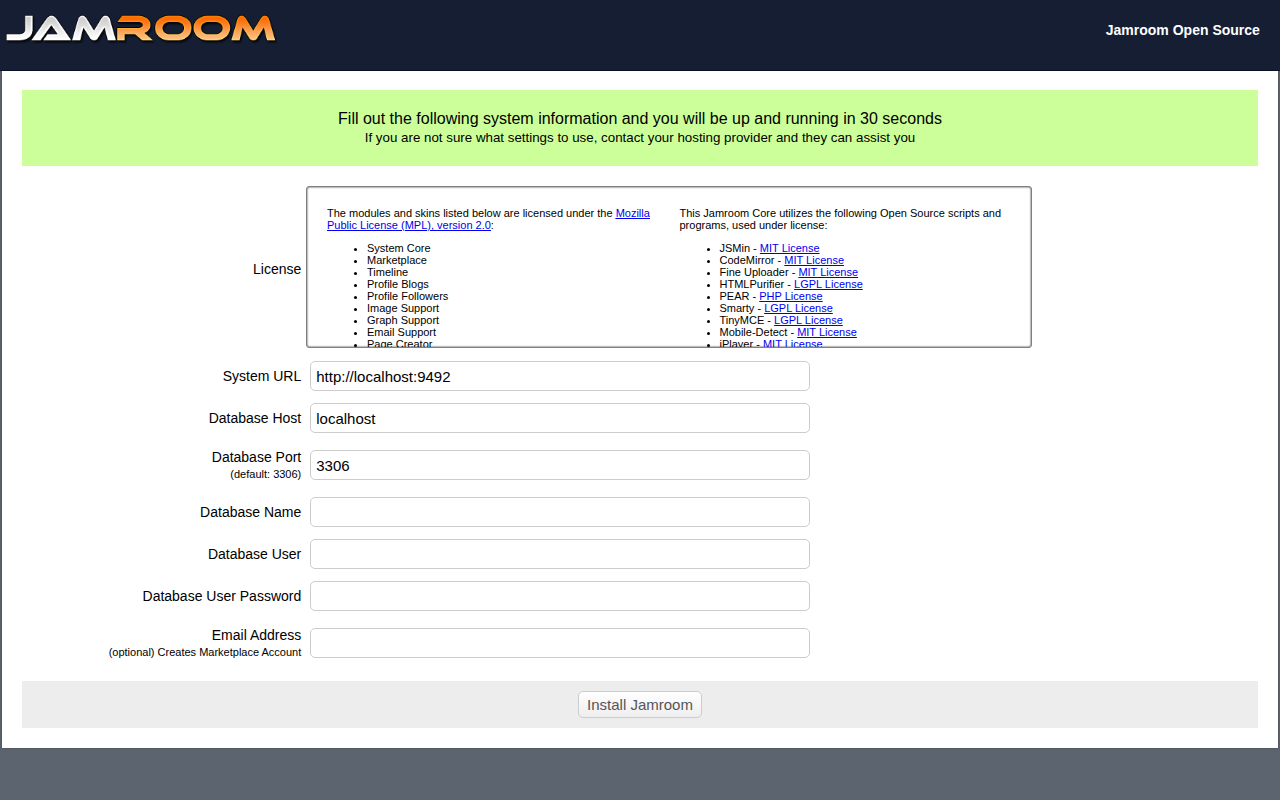
Open your site's address in your browser. Jamroom sends you to the installer.
-
-
Fill in the form:
Field What to enter System URL Your site's address. It's filled in from the address you opened, so check it starts with https://if your site uses SSL.Database Host Usually localhost. Your host tells you if it's different.Database Port Usually 3306 Database Name, Database User, Database User Password The database you created before you started Email Address Optional. When you enter your jamroom.net email address, the installer connects your site to the Marketplace for you. Without it, you connect it later (see Your jamroom.net Account and the Marketplace). Then click Install Jamroom and confirm. The install takes up to 30 seconds.
-
Step 5: Installed
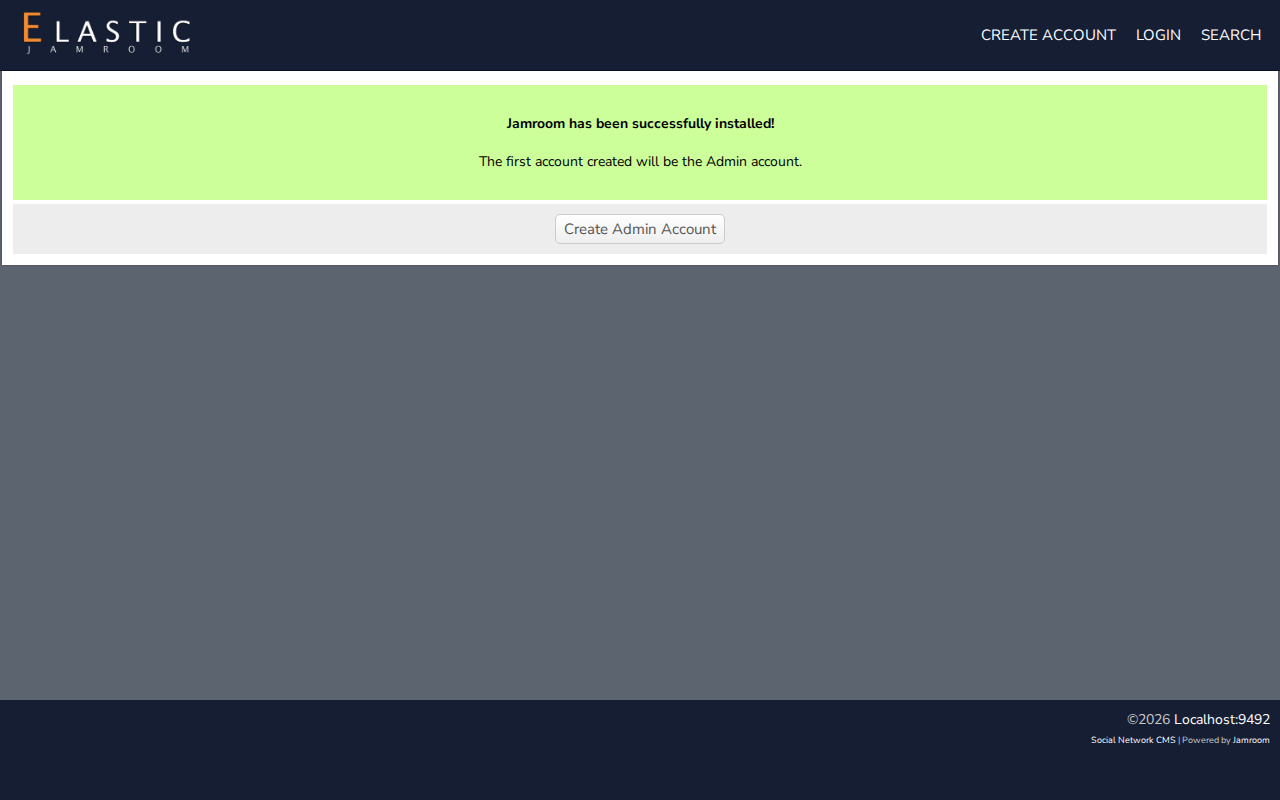
When the install has finished you see Jamroom has been successfully installed! and a Create Admin Account button.
Click it straight away. The first account created on the site becomes the master admin, so create it before anyone else can.
-
-
Next: Create the Admin Account
-
If the installer shows an error
The installer checks the server before it lets you install. When something is wrong, it shows a message and greys out the Install button. Fix the problem, then click Check Again.
Message What to do requires PHP 7.2.0 or newer Ask your host to switch your account to a newer PHP version. The following function(s) are not enabled in your PHP install Ask your host to enable the listed functions or extensions (see Server Requirements). The following directories are not writable Give the listed data/...directories write permission (Step 3).mod_rewrite does not appear to be enabled Ask your host to enable Apache's mod_rewrite. Unable to find the .htaccess file Upload the .htaccessfile from the ZIP (Step 2).Unable to connect to the MySQL database using the credentials provided Check the database host, name, user and password.