JAMROOM

Keeping Jamroom Up to Date
Applies to: Jamroom 7.0+
Last verified: 2026-10-24
Table of Contents:
Updates come from the Marketplace
Install updates
Go back to an earlier version
The Integrity Check
-
Updates come from the Marketplace
Jamroom, its modules and skins are updated through the Marketplace. You don't download or upload files. Your site needs to be connected to the Marketplace (see Your jamroom.net Account and the Marketplace).
By default Jamroom checks for updates during its daily maintenance and emails master admins when there are some. That's the Check For Updates setting in ACP > Modules > Core > Marketplace > Global Config.
-
Install updates
- Open ACP > Modules > Core > Marketplace > System Updates. It lists every installed module and skin that has a newer version.
- Click update next to one item, or update all items to install them all.
The Marketplace sets up each updated module itself, so there's nothing else to run.
-
Before a big update, such as a new Jamroom version, back up your site's files and database. For extra safety, turn on Maintenance Mode while you update.
-
Go back to an earlier version
ACP > Modules > Core > Marketplace > Tools > Release Archive keeps the previous versions of updated modules and skins. Restore one from there if an update causes a problem. Install History lists what was installed and when.
-
The Integrity Check
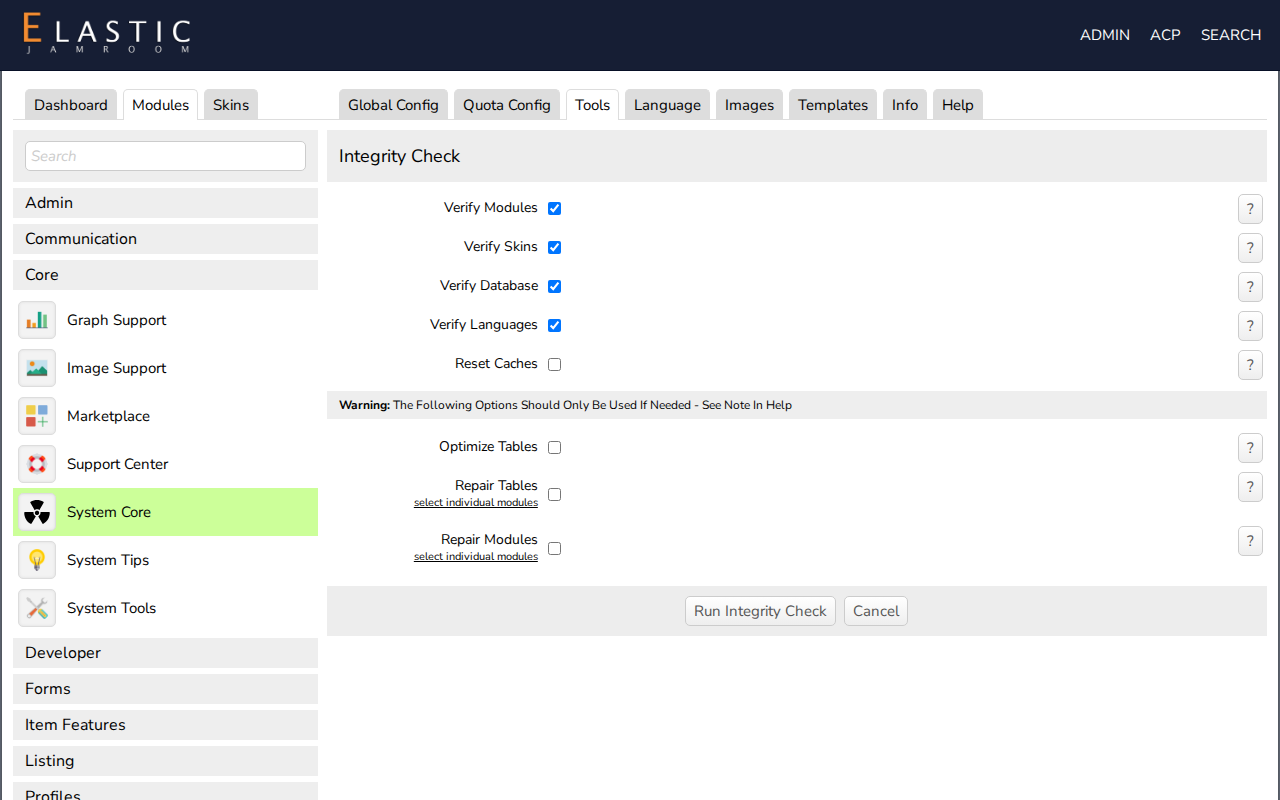
ACP > Modules > Core > System Core > Tools > Integrity Check checks that every module and skin is set up correctly, and repairs what it can. It can also check the database and the language strings, and reset the caches.
You don't need it after a Marketplace update. Run it when:
- you uploaded module or skin files yourself
- something looks broken after an update
- support asks you to
-
-
Reset Caches (in the same Tools tab) is the first thing to try when a change you made doesn't show on the site.